In this tutorial, you will explore Semarchy Dashboard Builder — a visual environment for creating interactive dashboards and data visualizations in Semarchy Data Platform.
Through a guided, hands-on exercise, you will build an Employee dashboard using data from a preconfigured Employee data product. You will learn how to connect Dashboard Builder to your data, create queries to retrieve and aggregate information, transform query results into charts, and combine these visualizations into a dashboard.
What you'll learn
- Create and configure a Dashboard Builder application.
- Configure a datasource connection to access Employee data.
- Create queries to retrieve and aggregate data for analysis.
- Build different types of charts from query results.
- Create a dashboard and organize charts into a clear visual layout.
- Add interactive elements to help users explore the data.
- Configure the dashboard application so that users can access the completed dashboard.
By the end of this tutorial, you will understand how datasources, queries, charts, and dashboards work together in Dashboard Builder to transform Employee data into meaningful visualizations.
Before you start
Before starting, make sure you have:
- Installed Visual Studio Code (latest version recommended).
- Downloaded and installed the Semarchy Data Platform extension from the Visual Studio Marketplace (version 2.0 or above)
- Access credentials for your particular Semarchy Saas instance.
- Access to Dashboard Builder in your Semarchy Data Platform environment.
- The required permissions to create and configure a Dashboard Builder application.
- The completed Employee project provided with this tutorial, ready to be deployed.
- The Employee dataset provided with this tutorial, ready to be imported into the Employee application.
- Basic understanding of:
- relational data concepts such as tables, columns, and relationships;
- basic SQL concepts, as queries will be used to retrieve and aggregate data for the dashboard;
- the purpose of dashboards and data visualizations.
Additional information can also be found in the official documentation: Data product dashboards
Please, click on the link below to download the required resources, including the project, the images and datasets used within this tutorial.
Click here to download the resource
All steps are designed to be self-contained, guiding you through the process even if you have limited prior experience with Semarchy Dashboard Builder.
The Employee data used in this tutorial represents a simplified organizational structure centered around employees and departments.
Before building the dashboard, take a moment to understand the data that will be available for your queries and visualizations.
Data Structure
The data is organized around two main entities:
1. Department
The Department entity contains information about the organizational departments, such as:
- Department name
- Department code
Each department can be associated with multiple employees.
2. Employee
The Employee entity contains information about employees, including their personal and organizational information.
Employee records can originate from several source systems:
- HR — Human Resources
- ATS — Applicant Tracking System
- PAY — Payroll
Each Employee can be associated with a Department.
The data also uses two predefined Lists of Values:
- Salutations — Mr, Mrs, Ms, etc.
- Subsidiaries — US, UK, etc.
Using the Data in the Dashboard
Throughout this tutorial, you will use this Employee data to create queries, charts, and dashboards that provide a visual overview of the organization's workforce.
The relationships and attributes available in these entities will determine which information can be analyzed and displayed in the dashboard.
Learning Objective
By the end of this tutorial, you will build a functional Employee dashboard that provides a visual overview of employee and department data.
You will be able to:
- Retrieve and aggregate Employee data using queries.
- Transform query results into meaningful charts.
- Combine these visualizations into an interactive dashboard.
- Present key Employee information in a clear and easy-to-analyze format.
This practical exercise will help you understand how Employee data can be transformed into useful visual insights using Semarchy Dashboard Builder.
Before building the Employee dashboard, you need to prepare and deploy the Employee data product to your Semarchy Data Platform environment.
The completed Employee workspace is provided with this tutorial. If you have already completed the Employee tutorial, you can use the workspace you created there instead.
Install the Semarchy Data Platform Extension
You can skip this task if the extension is already installed in your VS Code.
- Open Visual Studio Code.
- Go to Extensions (Ctrl+Shift+X).
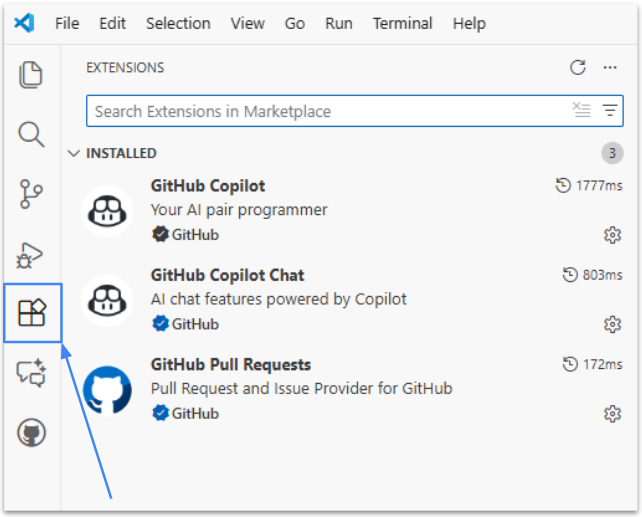
- Search for Semarchy Data Platform.
- Select the official extension and click Install. Important: Use version 2.0 or later.
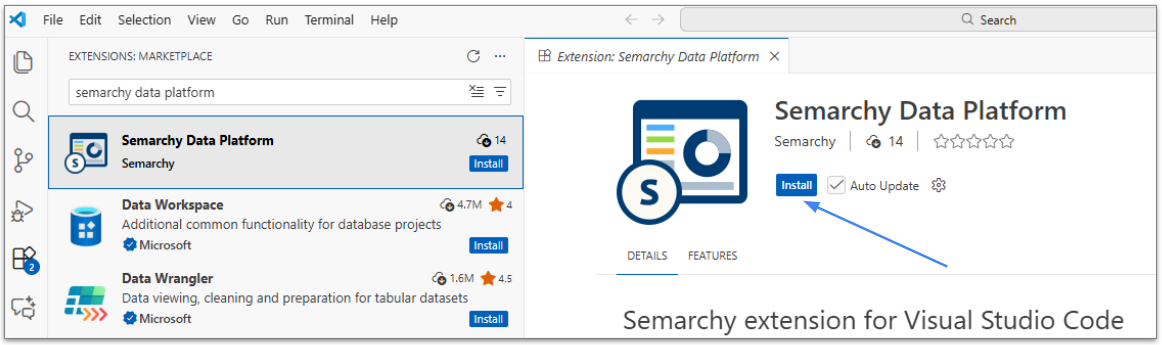
- Once installed, you should see the Semarchy Data Platform icon appear in the left activity bar — this confirms that the extension is ready to use.
Open the Employee Workspace
- Download and extract the employee-training-project provided with the tutorial resources.
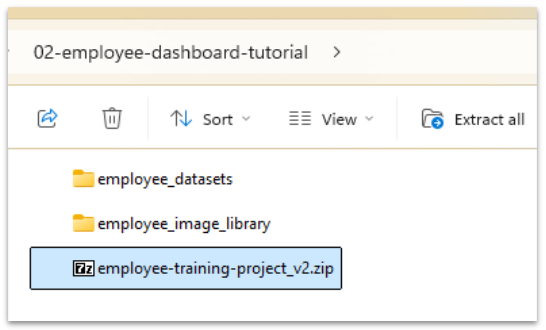
- Alternatively, if you completed the Employee tutorial, you can use the Employee workspace you created during that tutorial.
- In Visual Studio Code, select File → Open Workspace from File... and open the employee-training-project.code-workspace file.
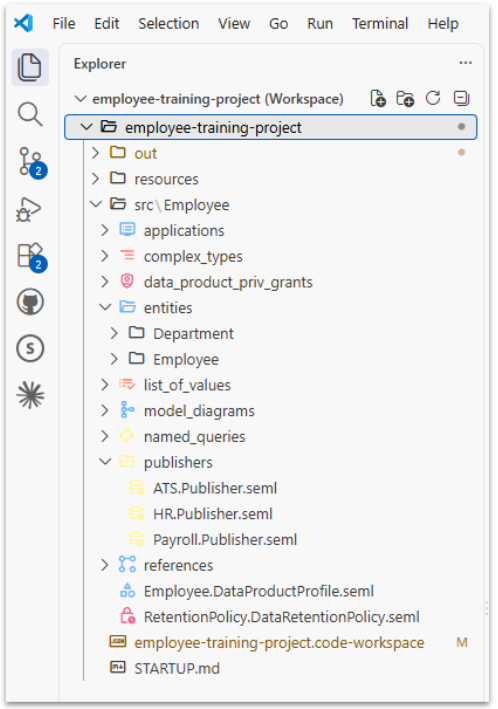
Expected Result
The Employee workspace opens in Visual Studio Code. In the Explorer, you can see the completed Employee data product and its design files.
Adjust the Deployment Settings
Before deploying the data product, configure the workspace for your training environment.
Open the Workspace settings and review the Semarchy deployment settings.
First, activate experimental features:
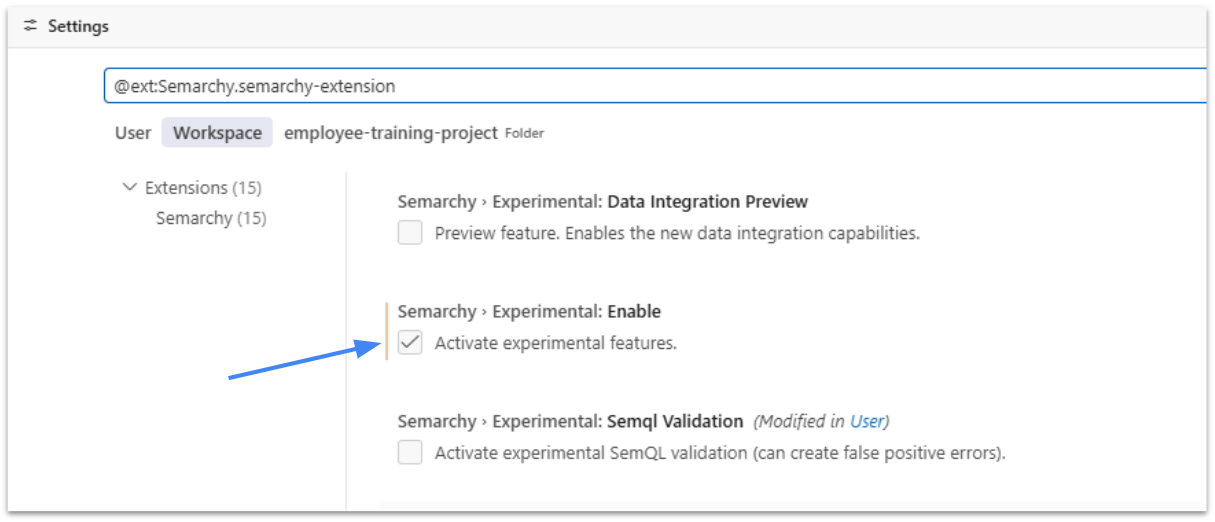
Configure the following values:
- Instance URL — URL of your Semarchy Data Platform instance.
- Datasource — platform datasource used to store the Employee data.
- Data Location — name of the data location where the Employee data product will be deployed.
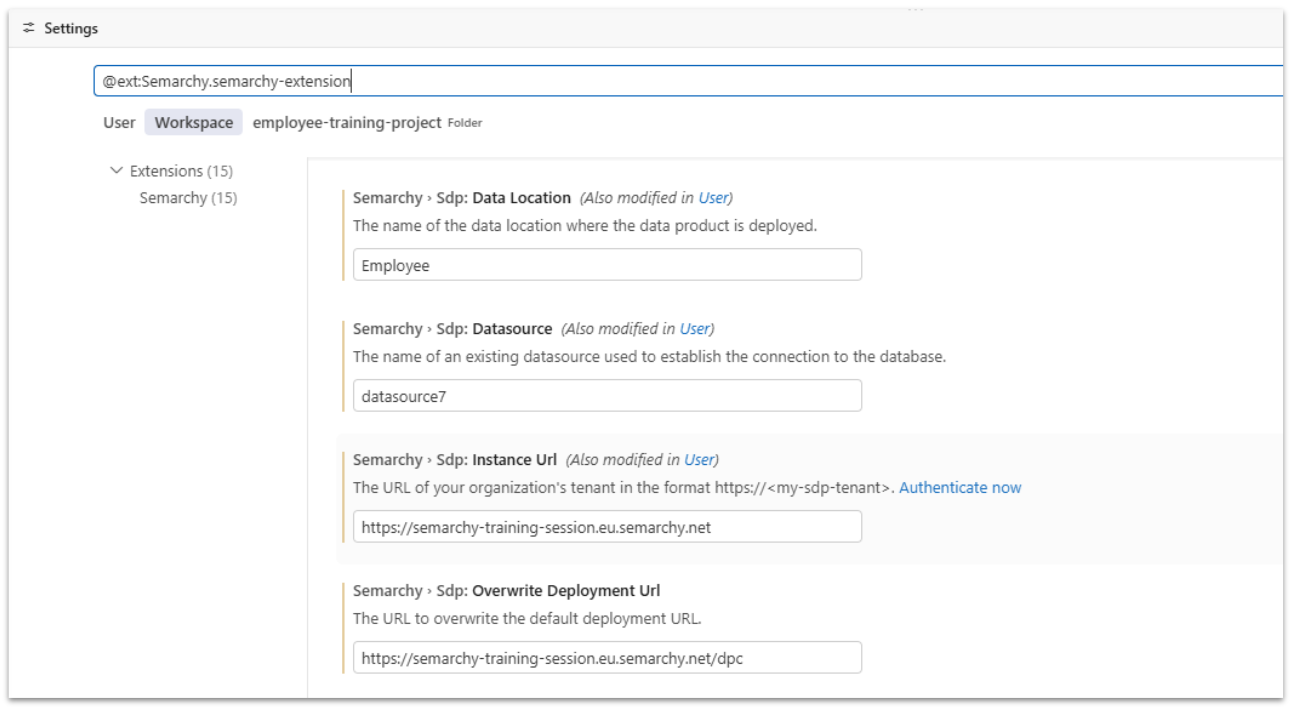
Attention: Make sure these values correspond to your own training environment before proceeding with the deployment.
Deploy the Employee Data Product
Once the deployment settings are configured, authenticate to your Semarchy Data Platform instance if necessary.
Then use Build and Deploy Data Product to build and deploy the Employee data product.
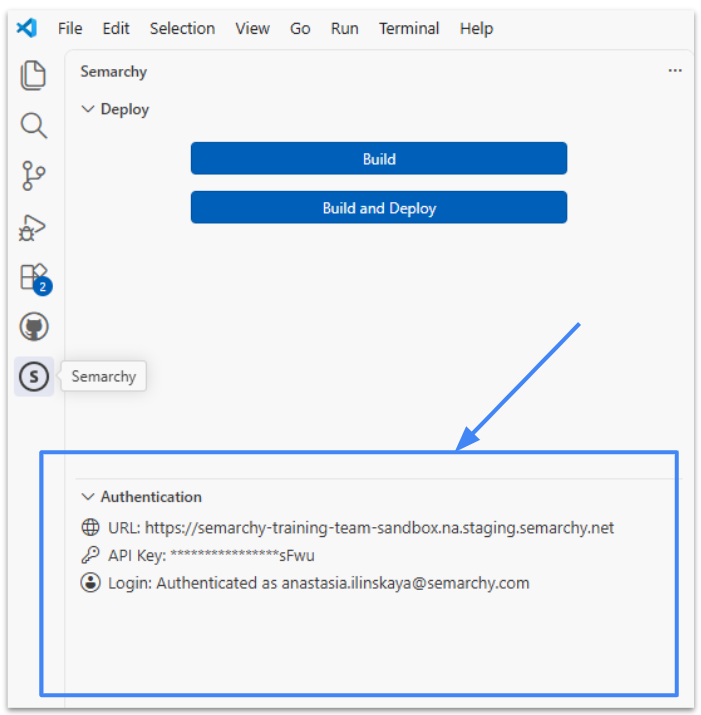
Wait for the operation to complete successfully.
Expected Result
The Employee data product is successfully deployed to the configured data location and the corresponding Employee application becomes available in Semarchy Data Platform.
You are now ready to populate the Employee application with the provided dataset before starting to build your dashboard.
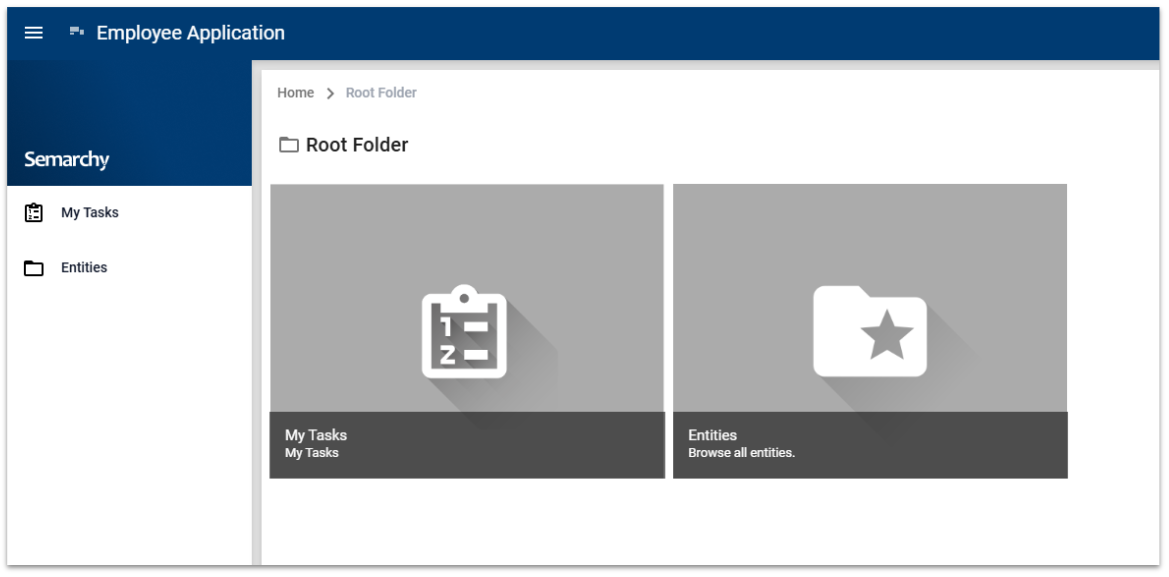
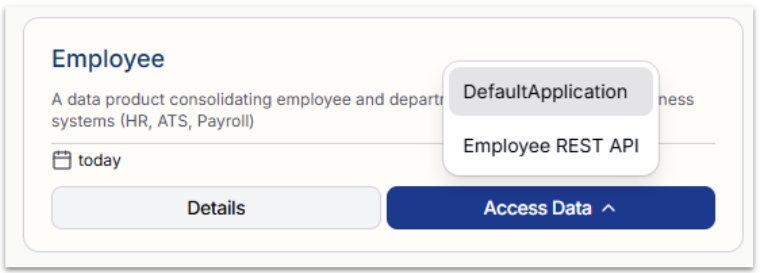
After a successful deployment, sign in to the Semarchy Data Platform and open the deployed data product to access its application.
- On the Welcome page find your application in the Data products section.
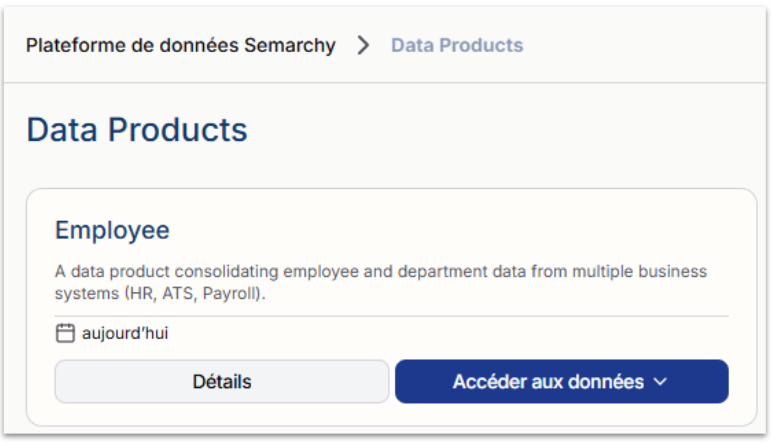
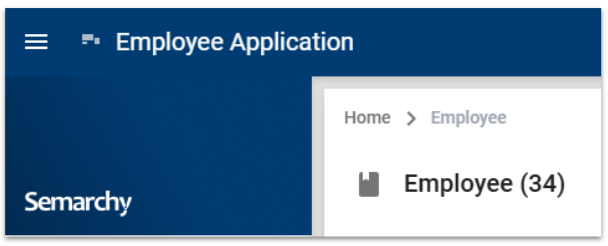
- Click into it and view your application. It might look something like this:
Import and Explore Sample Data
Now you will import data and view it in your application.
- In your application go the Entities folder > Golden Data > Department
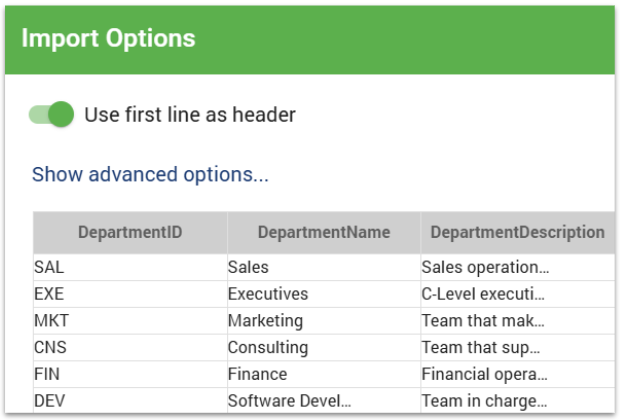
- In the menu choose Import and browse to the location of the Department.xlsx file from the tutorial resources you downloaded earlier

- Review the import contents and click Continue.
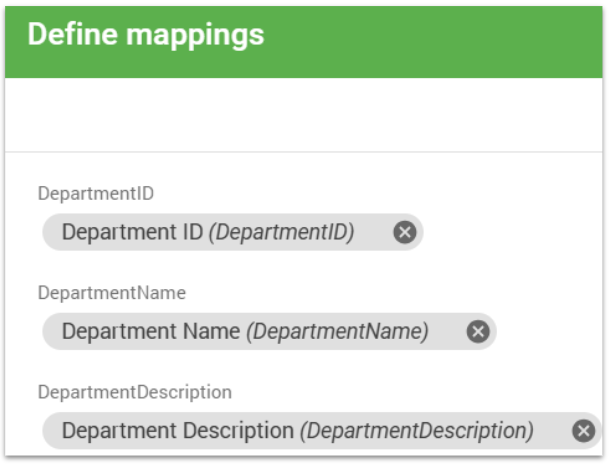
- Follow the on screen steps and keep the default mappings and click Continue.
- Review the import summary and then click Finish to import the data. The data is submitted to the certification process.
- Wait until the toaster in the bottom left hand corner indicates "Changes successfully applied.", and then select Click to Refresh to see the data.

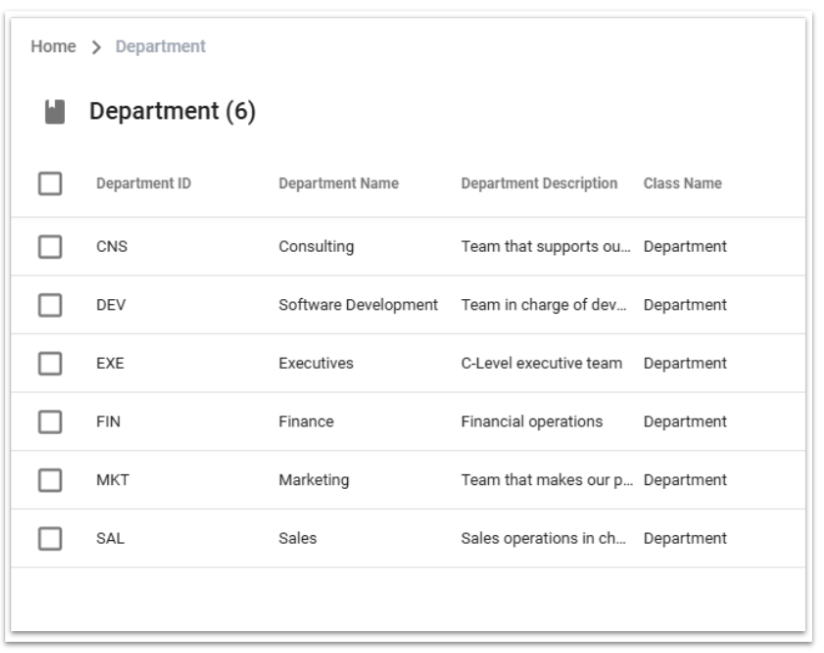
- The Departments collection is now showing six records:
Import Employee Data
Now you will import the Employee data and view it in your application.
- In your application go the Entities folder > Master Data > Employee
- In the menu choose Import and browse to the location of the Employee.xlsx file from the tutorial resources you downloaded earlier.
- Repeat the previous steps to import employee data. Follow the on screen instructions to
- Review the import contents
- Define and confirm mappings
- Review import summary and click Finish
- When the toaster indicates "Changes successfully applied", click on Refresh to see the imported master data. Note the number of master records imported.
- In your application go to the Entities folder > Golden Data > Employee. Observe that the number of golden records created - compare this to the number of master records, which means that some records matched and merged according to the match rules you defined.
Your Employee application is now populated with the required data. The environment is ready, and you can now use this data to create queries, charts, and dashboards in Dashboard Builder.
Now that the Employee application is deployed and populated with data, you can start building the dashboard.
From the Semarchy Data Platform Home page, open the main navigation menu and select Dashboard Builder.
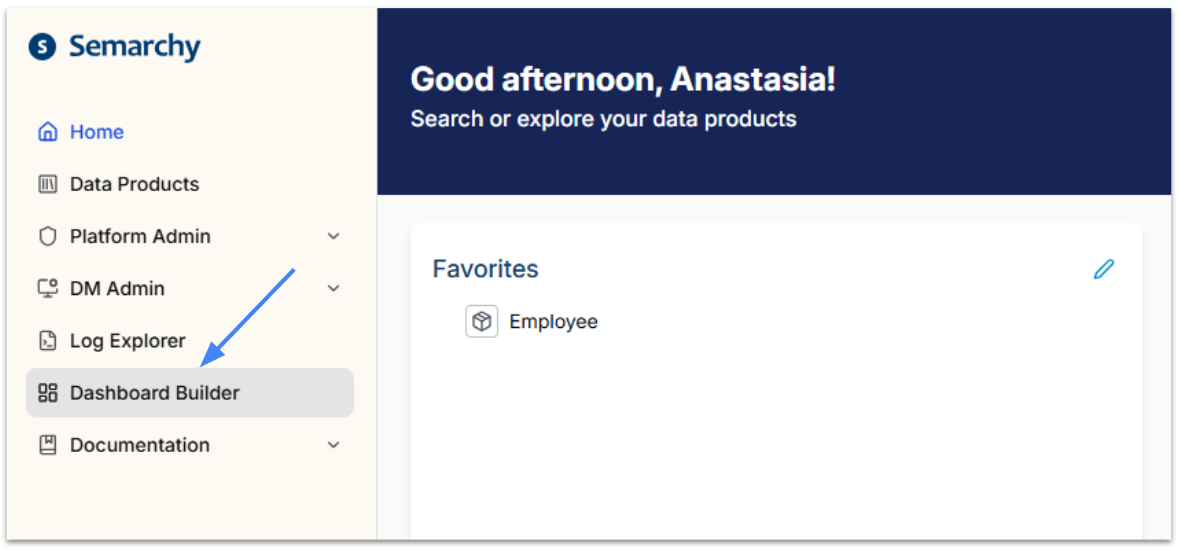
Dashboard Builder opens on a new page.
Create a Dashboard Application
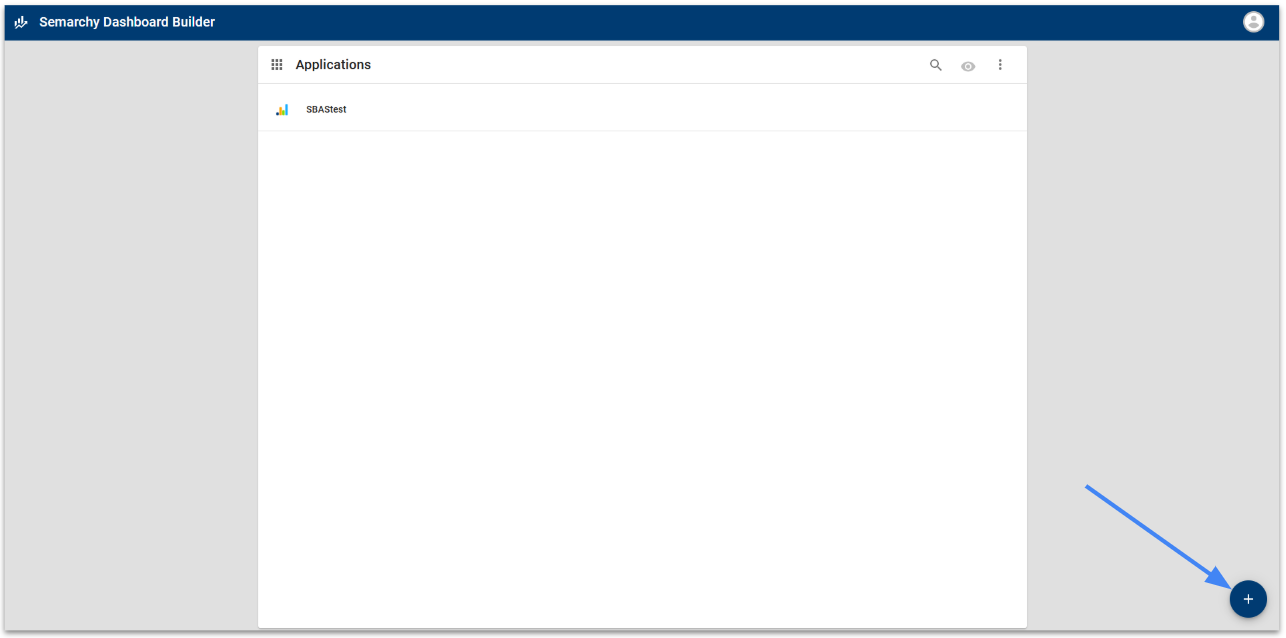
If no dashboard application has been created yet, the Welcome to Semarchy Dashboards page is displayed.
Click + button to create Dashboard application.
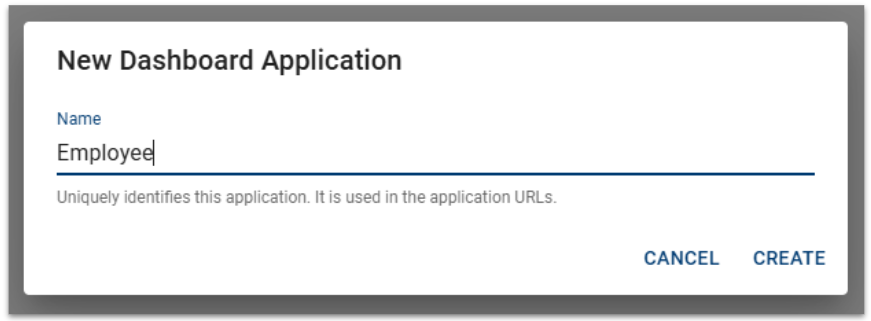
In the New Dashboard Application dialog, enter:
Name: Employee
Click CREATE.
Explore the Dashboard Builder
The Employee dashboard application opens.
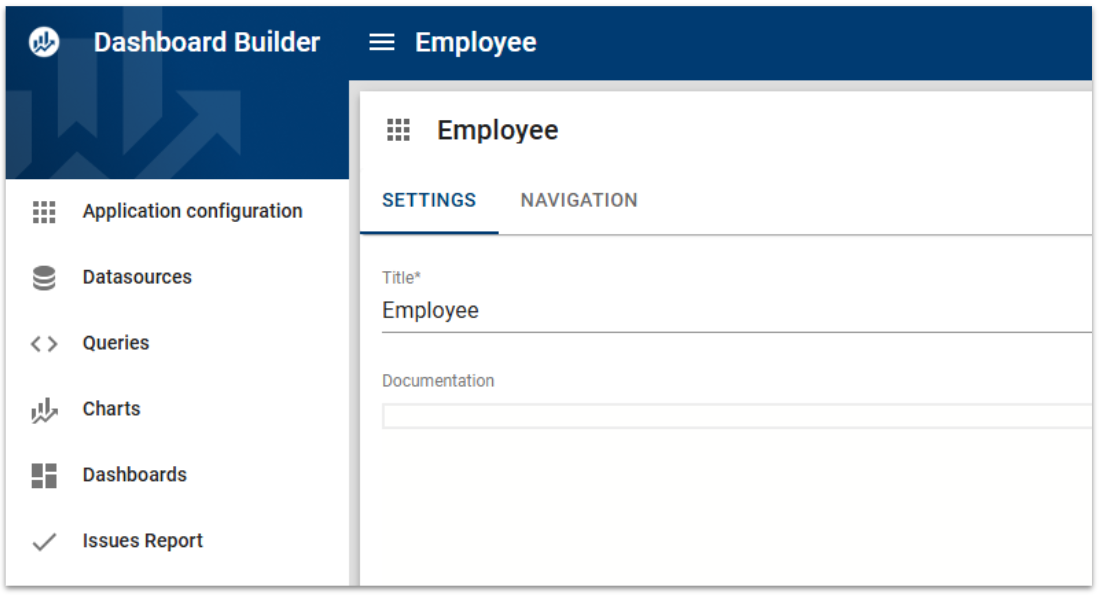
Before continuing, take a moment to review the main sections available in the navigation menu:
- Application configuration — configure the dashboard application and its navigation.
- Datasources — configure access to the data you want to analyze.
- Queries — retrieve and prepare data for your visualizations.
- Charts — create visual representations of query results.
- Dashboards — assemble charts and other elements into dashboard pages.
- Issues Report — review configuration issues detected in the application.
In the following steps, you will work through these components progressively, starting with a datasource connection to the Employee data.
Expected Result
The Employee dashboard application has been created and is ready to be configured.
Before creating queries and visualizations, you need to configure a datasource connection. This connection allows Dashboard Builder to access the database containing the Employee data.
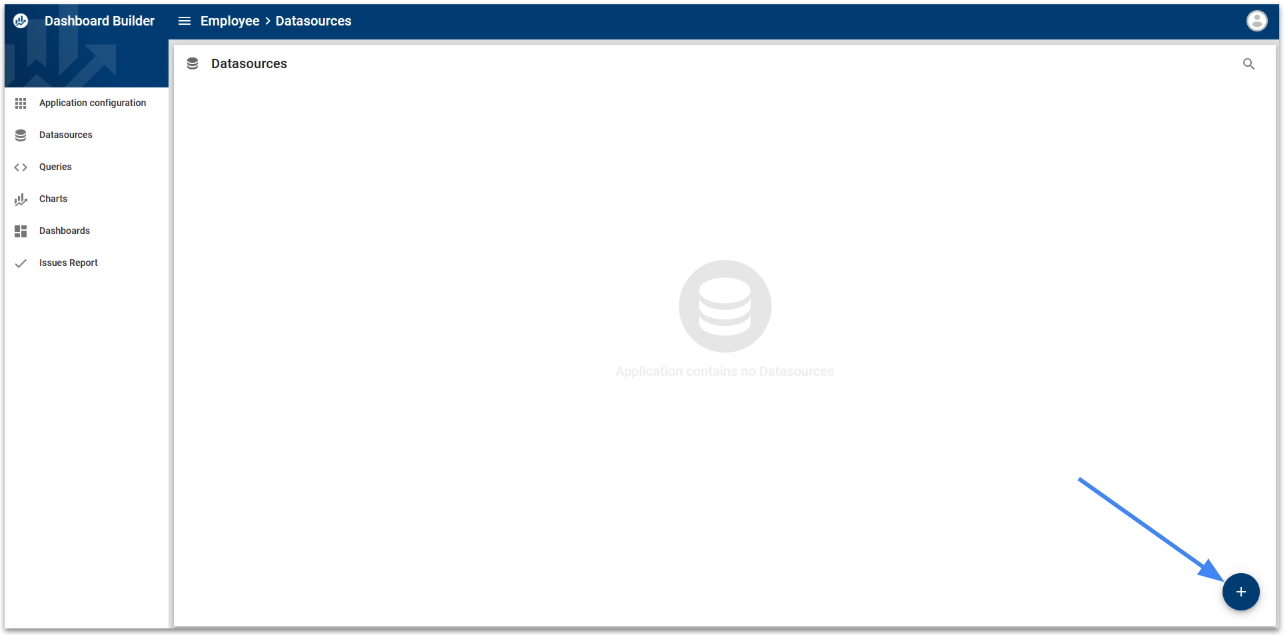
From the left navigation menu of the Employee dashboard application, select Datasources.
Click the + button to create a new datasource connection.
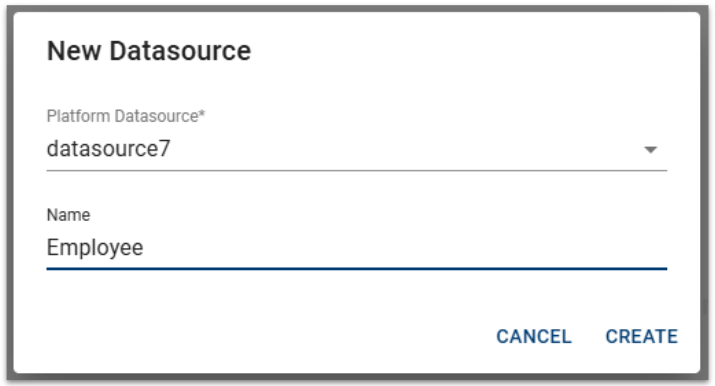
In the datasource configuration, enter a name for the connection, for example:
Name: Employee
For Platform Datasource, select the same platform datasource that you configured for the Employee data location during deployment.
Select the appropriate Database Type for your training environment.
If the interface provides the option, test the connection before continuing.

Save the datasource configuration.
Expected Result
The Employee datasource connection appears in the Datasources list and is available for use in Dashboard Builder.
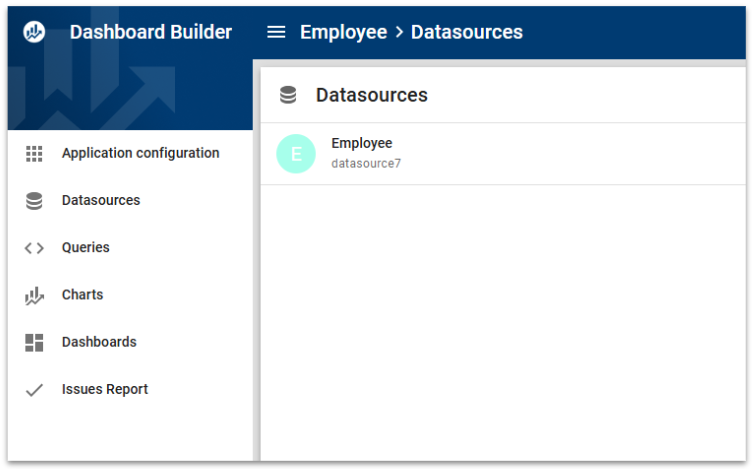
Dashboard Builder can now access the database containing your Employee data. In the next step, you will create your first query to retrieve data for the dashboard.
Now that the datasource connection is configured, you can create a query to retrieve data from the Employee data location.
Queries provide the data that will later be used to build charts and dashboards.
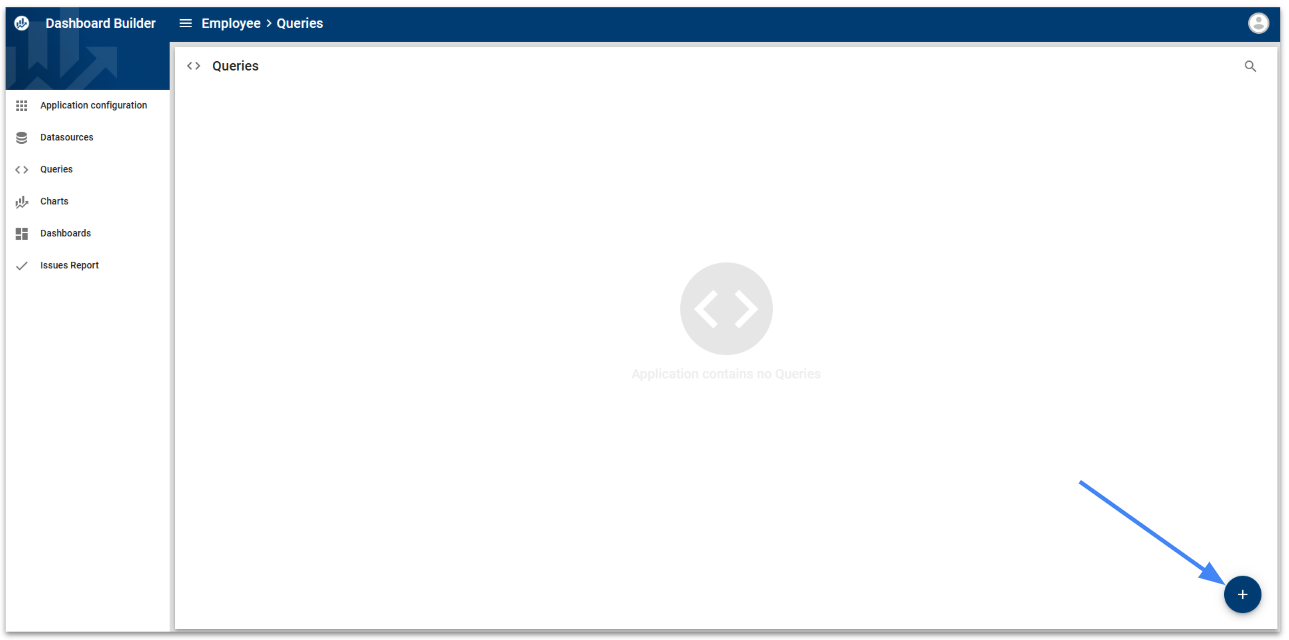
From the left navigation menu, select Queries.
Click the + button to create a new query.
Configure the Query
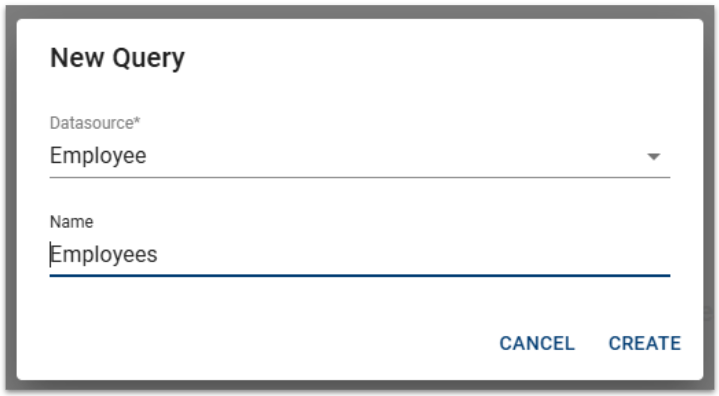
Enter a name for the query, for example:
Name: Employees
Select the Employee datasource connection you created in the previous step.
In the query editor, enter a SQL query to retrieve Employee golden records.
For example, if the Employee golden-data table in your environment is gd_employee, we could start with:
SELECT *
FROM gd_employeeRun the Query
Press the Run Query button to run the query.

Once the query has been successfully executed, Dashboard Builder automatically detects the columns returned by the query and displays them in the Query attributes section.
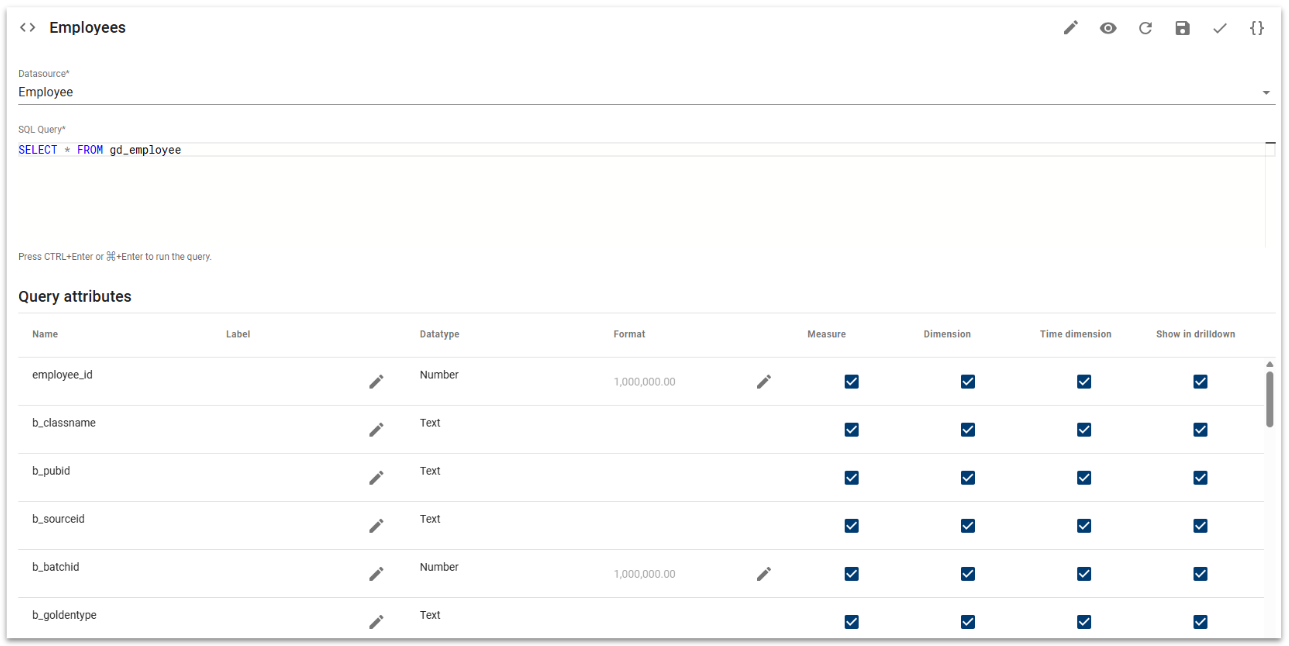
For each attribute, you can review or configure properties such as:
- Name and Label
- Datatype and Format
- Measure
- Dimension
- Time dimension
- Show in drilldown
These properties determine how the attributes can later be used when configuring charts and exploring their data.
Then click Save to save the Employees query.
Expected Result
The Employees query successfully retrieves the Employee golden records, and the returned columns are available as Query attributes.
The query is now ready to be used as a data source for visualizations.
The first Employees query retrieved all Employee golden records and allowed you to explore the available query attributes.
For the first chart, you will now create a second query designed specifically for the visualization. This query will prepare the data required to display the number of employees by department.
From the left navigation menu, select Queries, then click the + button to create a new query.
Configure the Query
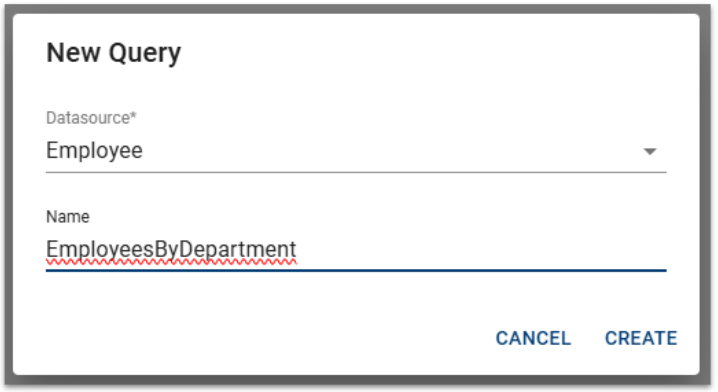
Configure the query as follows:
- Name:
EmployeesByDepartment - Datasource:
Employee
The query will retrieve the department information and calculate the number of employees associated with each department.
Enter the following SQL query:
SELECT
    d.department_name,
    COUNT(e.employee_id) AS employee_count
FROM gd_employee e
LEFT JOIN gd_department d
    ON e.f_department = d.department_id
GROUP BY d.department_name
ORDER BY employee_count DESC
This query combines data from the Employee and Department golden-data tables.
It groups employees by department and uses COUNT to calculate the number of employees associated with each department.
Run the Query
Press Ctrl+Enter to run the query.
Once the query has been successfully executed, Dashboard Builder detects the returned columns and displays them under Query attributes.
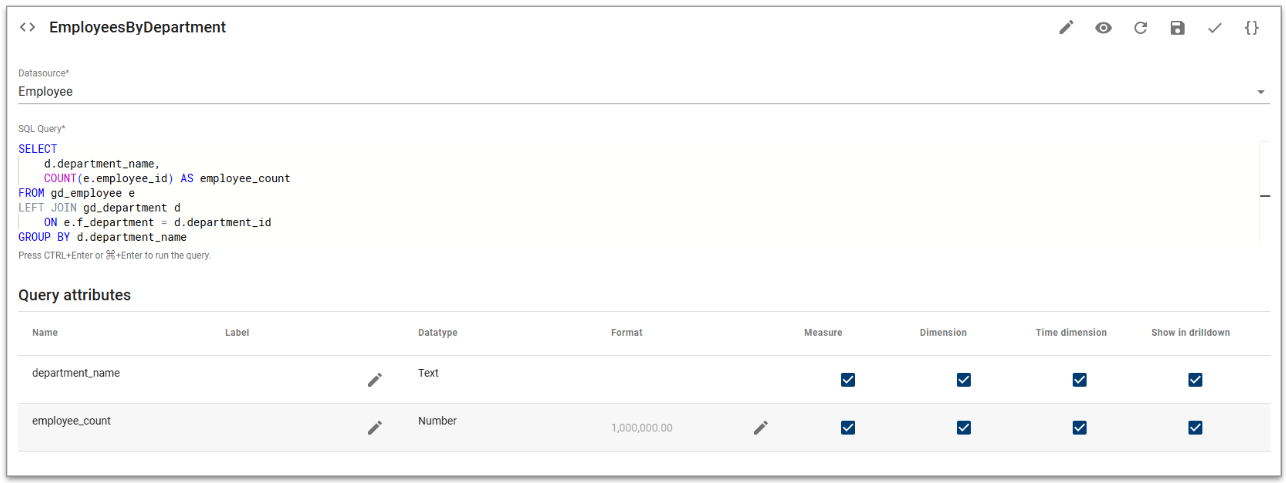
For this query, two attributes are generated:
department_name— identifies the department.employee_count— contains the calculated number of employees.
These two attributes will be used to configure the chart: Department Name as the category and Employee Count as the value.
Save the query.
Expected Result
The EmployeesByDepartment query is created successfully and exposes department_name and employee_count as query attributes.
The data is now prepared for visualization. In the next section, you will use this query to create an Employees by Department chart.
Now that the Employee data has been grouped by department, you can create a chart to visualize the distribution of employees across the organization.
From the left navigation menu, select Charts, then click the + button.
In the New Chart dialog, configure the following properties:
- Query:
EmployeesByDepartment - Chart type:
Bar chart - Label:
Employees by Department - Name:
EmployeesByDepartment
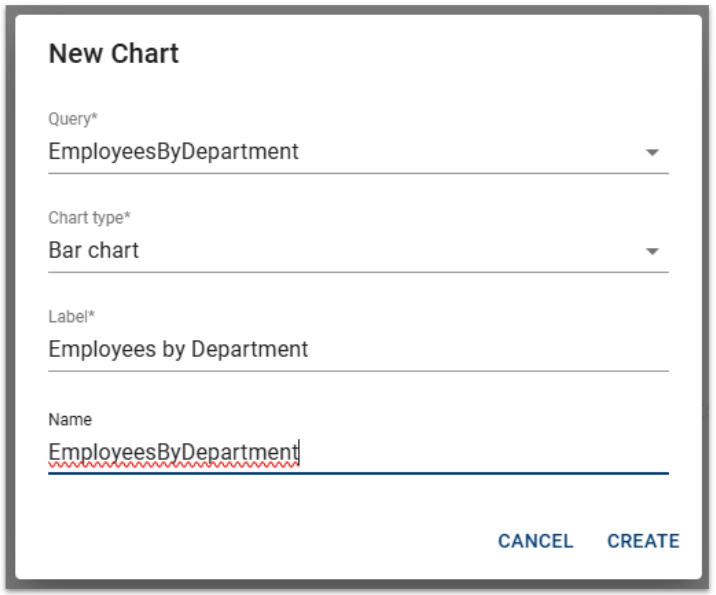
Click CREATE.
Configure the Chart Data
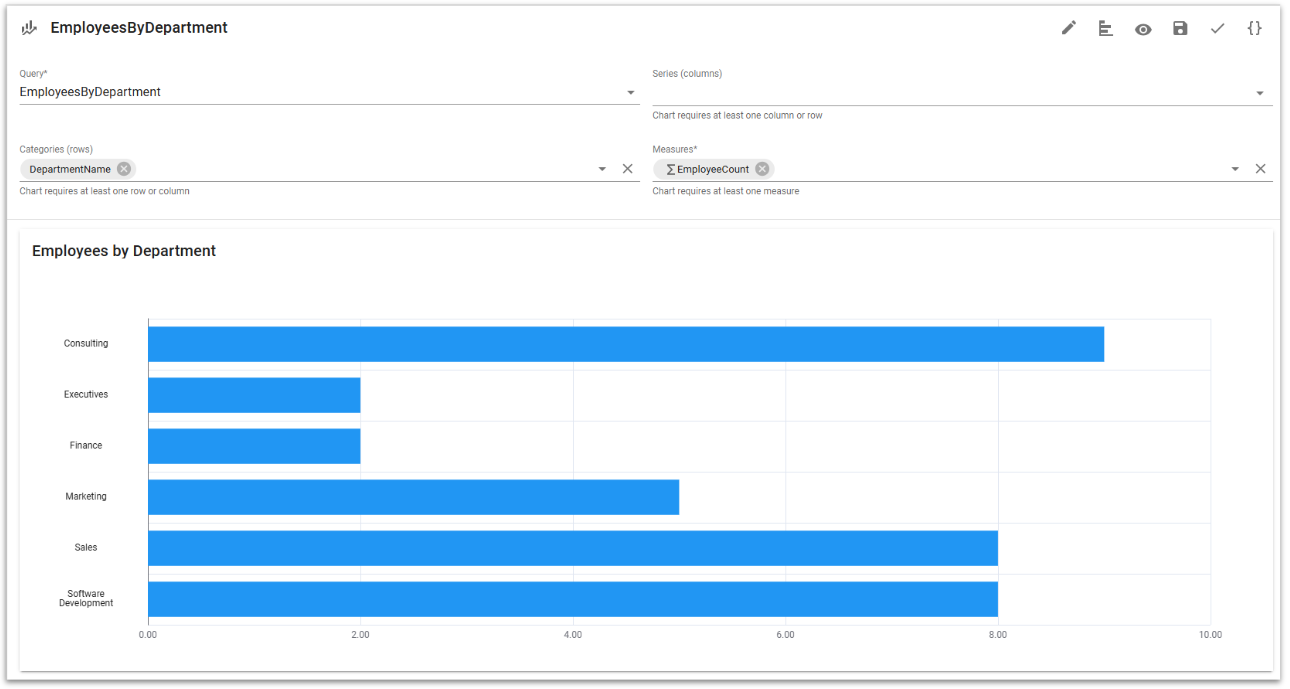
The chart configuration page opens. The attributes available for the chart come from the selected EmployeesByDepartment query.
Configure the chart using:
- Rows (categories):
DepartmentName - Columns (series): leave empty
- Measures:
EmployeeCount
Here, DepartmentName defines the categories displayed on the chart, while EmployeeCount provides the numeric value represented by each bar.
Since the chart displays only one measure, no additional series is required.
Preview the Chart
The chart preview is updated automatically and displays the number of employees in each department.
Verify that the departments are displayed correctly and that the length of each bar corresponds to its employee count.
Click Save to save the chart.
Expected Result
The Employees by Department chart displays each department as a separate category and compares the corresponding number of employees.
You have now transformed the aggregated data from the EmployeesByDepartment query into your first visualization.
You will now create another query to analyze how employees are distributed across the company's subsidiaries. From Queries, click + button and configure:
Name: EmployeesBySubsidiary
Datasource: Employee
Enter the following SQL:
SELECT
    subsidiary,
    COUNT(employee_id) AS employee_count
FROM gd_employee
GROUP BY subsidiary
Then run the query. The query returns two attributes:
subsidiary→ category/dimensionemployee_count→ numeric measure
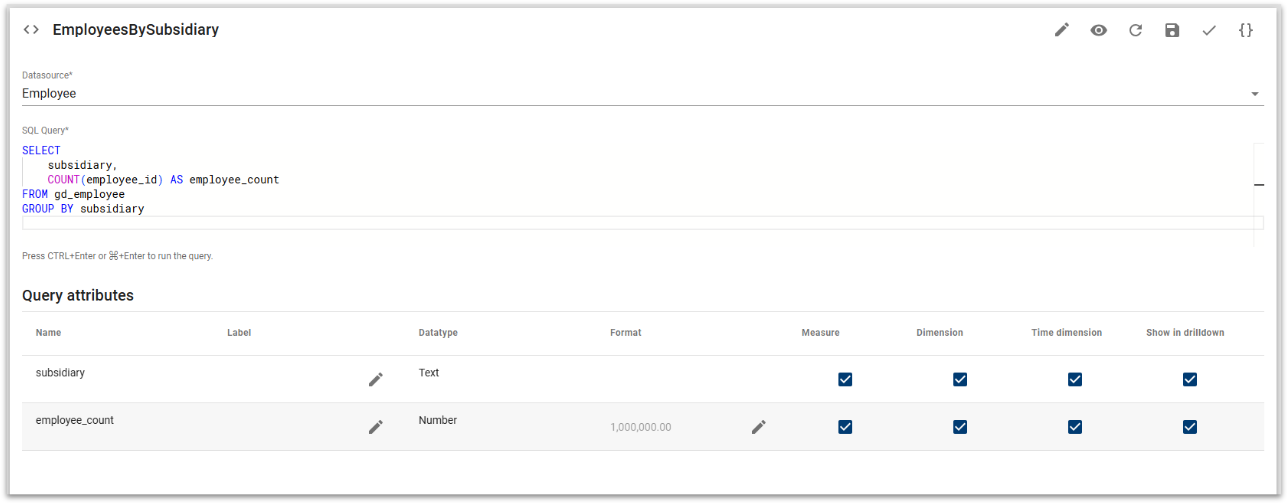
Save the query.
Expected Result
The EmployeesBySubsidiary query is ready and provides the aggregated data required to visualize the distribution of employees by subsidiary.
Create an Employees by Subsidiary Chart
Now select Charts and click +.
Configure the new chart as follows:
- Query:
EmployeesBySubsidiary - Chart type: Donut/
pie chart - Label:
Employees by Subsidiary - Name:
EmployeesBySubsidiary
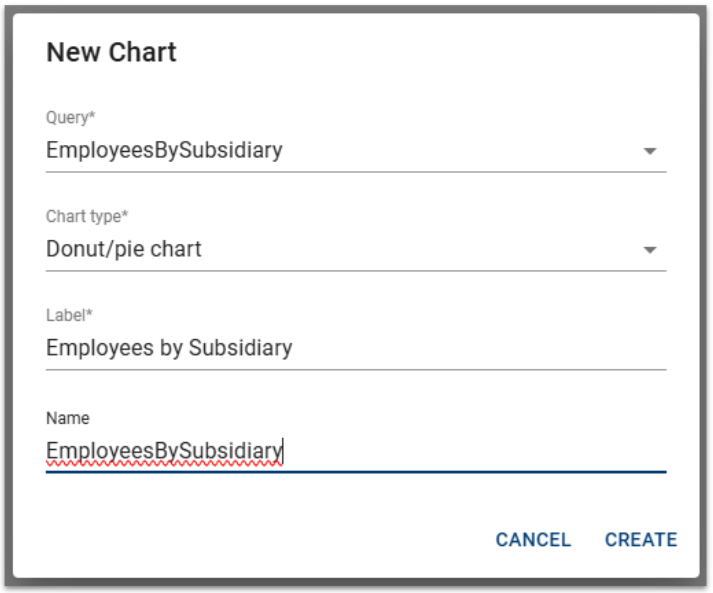
Click CREATE.
Configure the Employees by Subsidiary Chart
Configure the chart as follows:
- Categories (rows): leave empty
- Series (columns):
subsidiary - Measures:
EmployeeCount
Here, the subsidiary defines the different segments of the chart, while EmployeeCount determines the size of each segment.
The chart preview should automatically update to show the distribution of employees across the different subsidiaries.
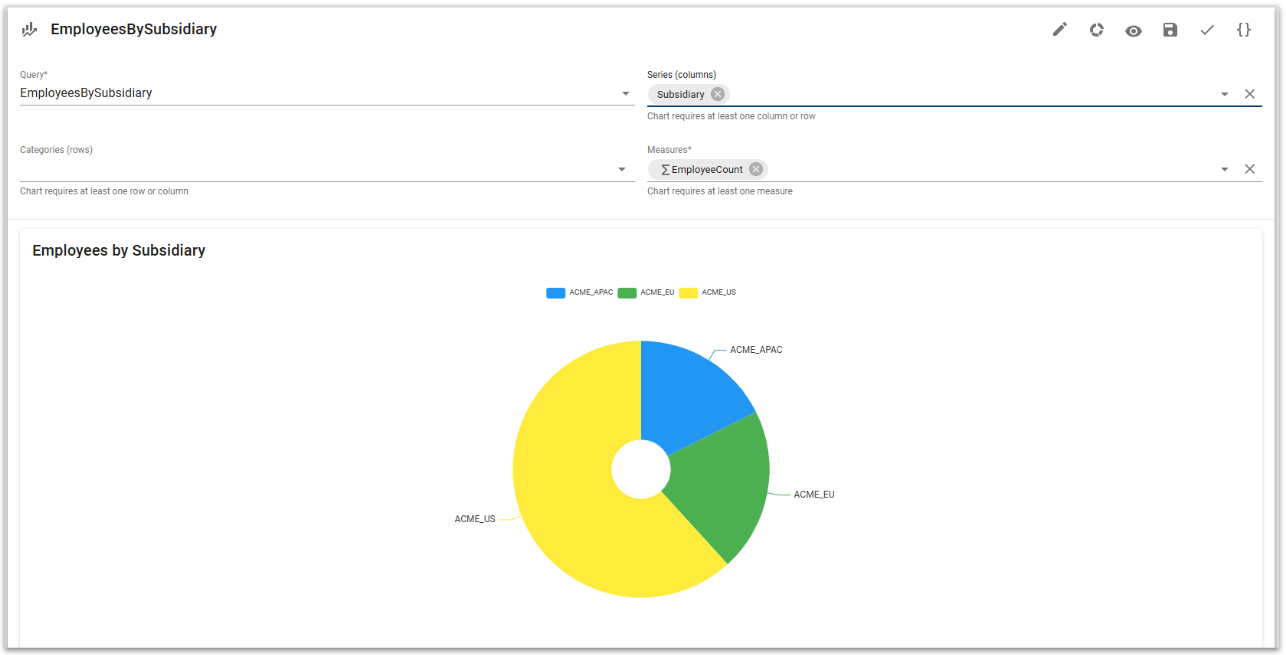
Once the result is displayed correctly, save the chart.
Expected Result
The Employees by Subsidiary chart displays one segment for each subsidiary (ACME_APAC, ACME_EU, and ACME_US), with the size of each segment representing its number of employees.
You now have two different visualizations ready to use:
- Employees by Department — compares employee counts across departments.
- Employees by Subsidiary — shows the relative distribution of employees across subsidiaries.
We can now move on to the Dashboard chapter and combine these two charts into the Employee dashboard.
You have created two visualizations based on the Employee data. You will now combine them into a dashboard that provides an overview of the employee population.
The dashboard will contain:
- Employees by Department — a bar chart comparing the number of employees across departments.
- Employees by Subsidiary — a chart showing the distribution of employees across subsidiaries.
Create a Dashboard
From the left navigation menu, select Dashboards.
Click the + button to create a new dashboard.
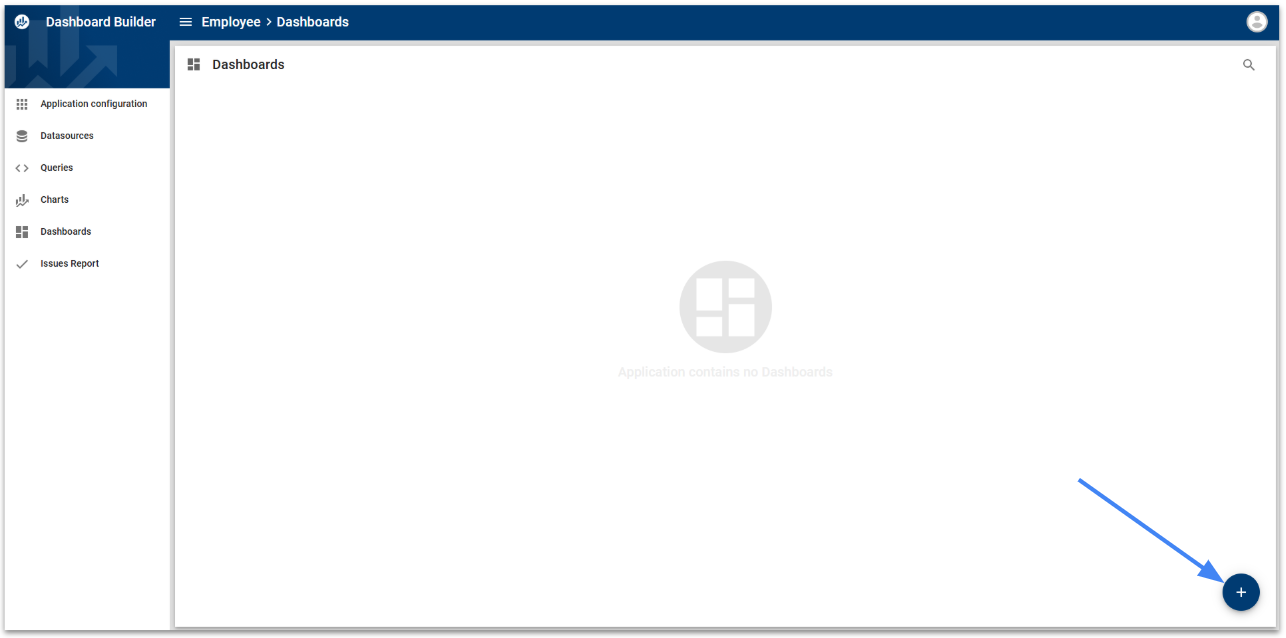
Create a dashboard with the following information:
Name: EmployeeOverview
Label: Employee Overview
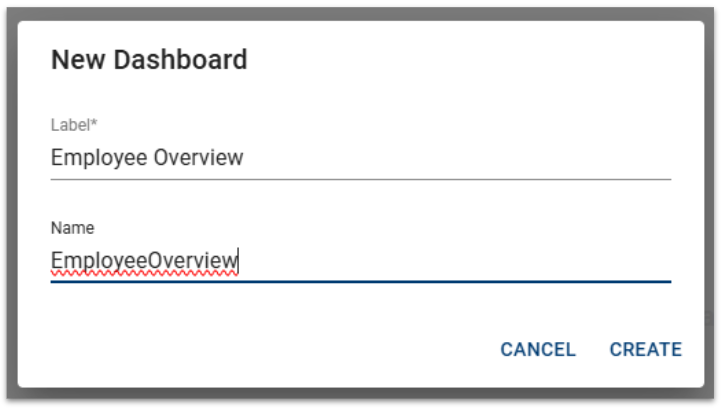
Click CREATE.
Expected Result
The Employee Overview dashboard is created and opens in the Dashboard Builder.
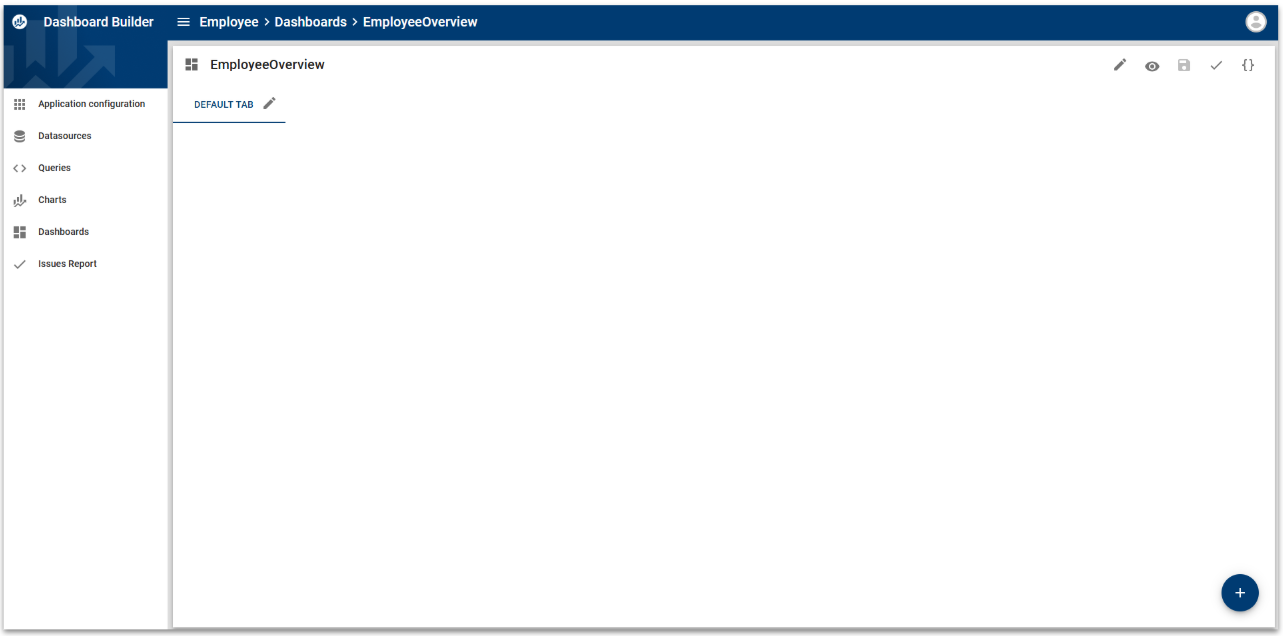
At this stage, the dashboard does not contain any visualizations. In the next steps, you will add the charts you created earlier and organize them into the dashboard layout.
Explore the Dashboard Structure
The EmployeeOverview dashboard opens with a Default Tab.
A dashboard can contain one or more tabs, allowing you to organize visualizations into different views. For this tutorial, you will use a single tab to display the Employee overview.
Before adding content, rename the tab to make its purpose clearer.
Click the Edit icon next to DEFAULT TAB and rename it:
Tab label: Overview
Save your changes.
Add Content to the Dashboard
Click the + button in the bottom-right corner.
The menu expands and provides four types of content that can be added to the dashboard:
- Tab — adds another tab to organize dashboard content into separate views.
- Text — adds textual content, such as a title, description, or instructions.
- Slicer — adds an interactive filter that users can use to filter dashboard data.
- Chart — adds one of the charts created in Dashboard Builder.
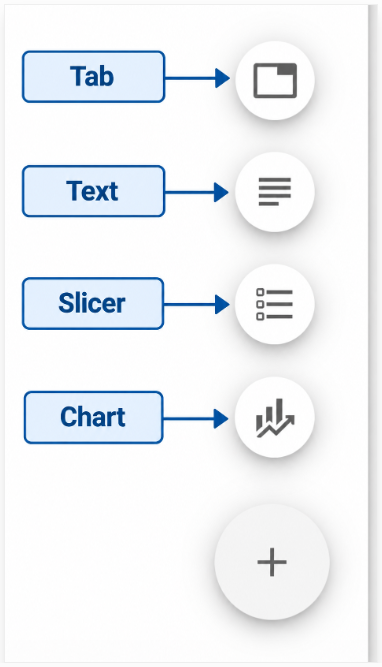
For this tutorial, you will first add the two charts created in the previous sections.
Add the Employees by Department Chart
From the expanded menu, click Chart.
Then select the Employees by Department chart.
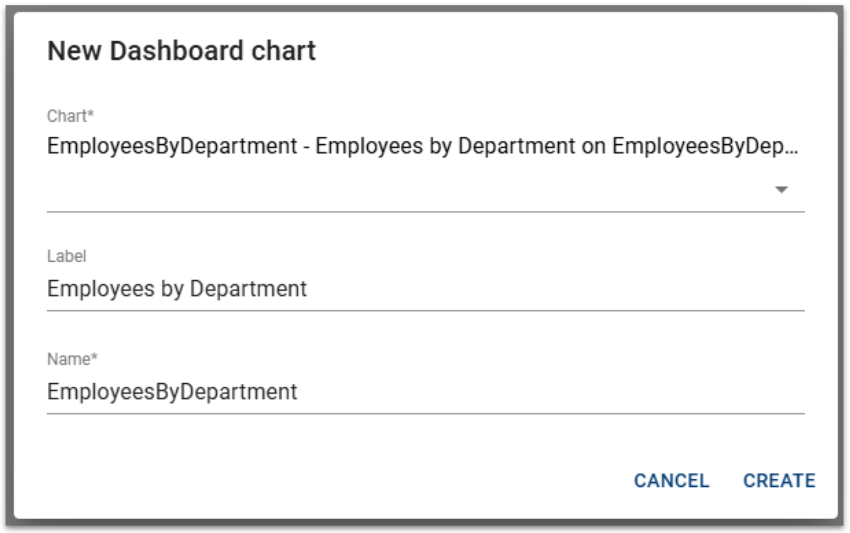
The component now uses the chart you created earlier.
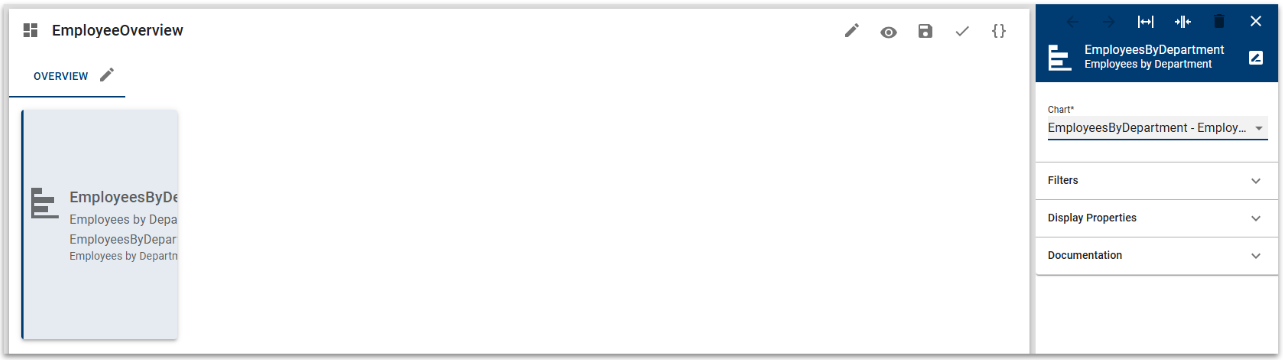
The configuration panel also provides additional options for configuring the component, including:
- Filters — apply filters specifically to this chart.
- Display Properties — customize how the chart is displayed on the dashboard.
- Documentation — add descriptive information about the component.
For this tutorial, keep the default settings.
You can move and resize the component directly in the dashboard layout to adjust how much space the chart occupies.
Next, we can add Employees by Subsidiary in exactly the same way.
Add the Employees by Subsidiary Chart
Click + button again and select Chart.
From the Chart dropdown, select: Employees by Subsidiary
Position the new chart next to the Employees by Department chart and resize the components as needed to create a clear dashboard layout.
Expected Result
The Overview tab now contains both visualizations:
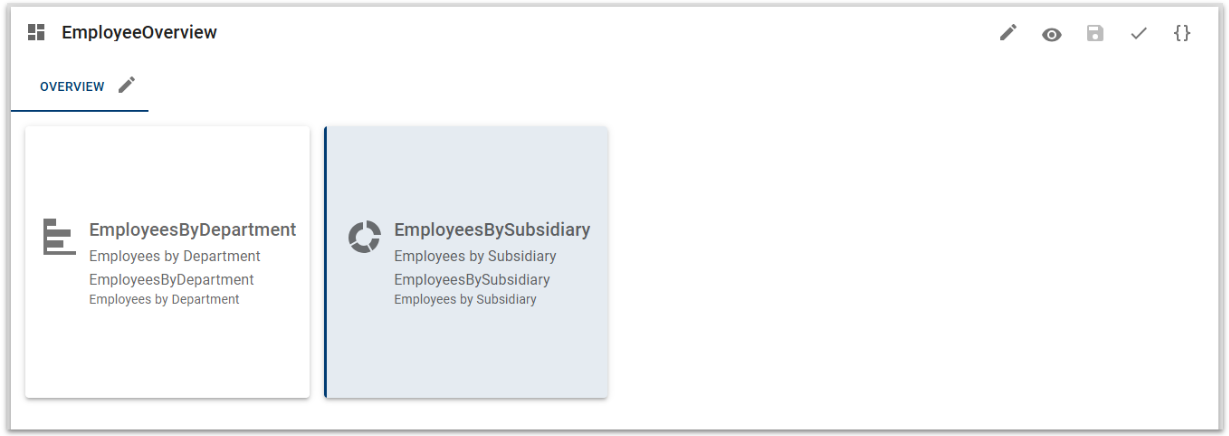
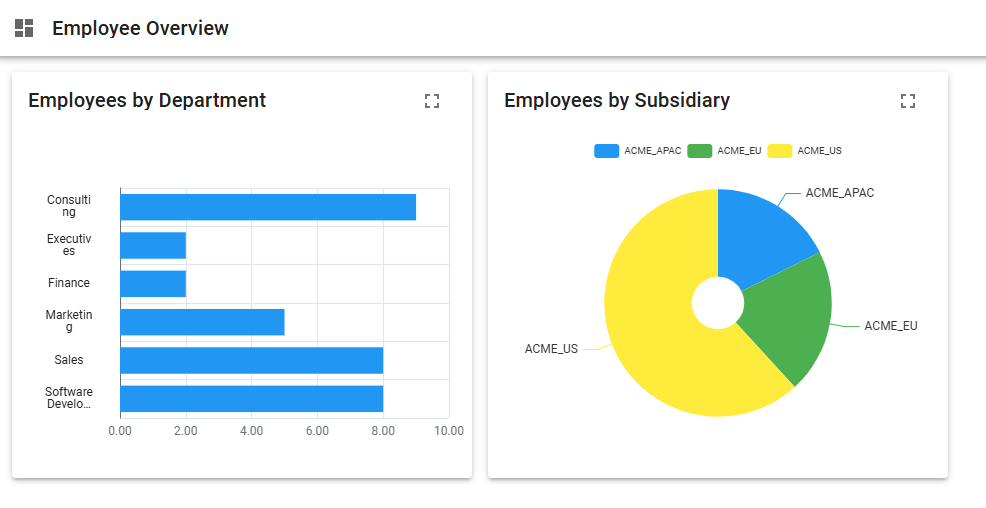
Employees by Department provides a comparison of employee counts across departments, while Employees by Subsidiary shows how employees are distributed across the different subsidiaries.
Click Preview button to see the result:
Add a Slicer
Charts provide visual information, but a dashboard can also include slicers that allow users to interact with the displayed data.
A slicer provides a selection control based on data from a query. The selected value can then be used to filter dashboard content.
To add a slicer, click the + button in the bottom-right corner and select Slicer.
Add a Department Slicer:
In the New Slicer dialog, configure:
- Label:
Department - Name:
Department - Under EmployeesByDepartment, select
department_name. - Leave EmployeesBySubsidiary unselected.
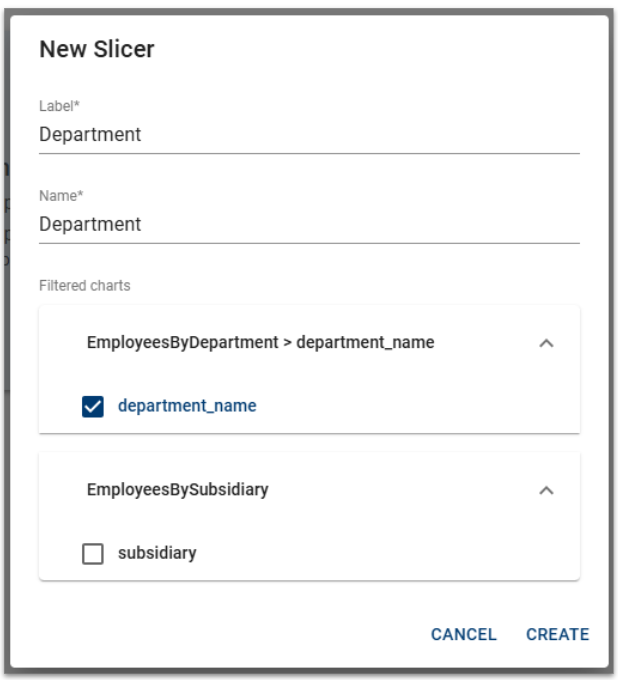
Click CREATE.
The slicer will be associated with the Employees by Department chart and will allow dashboard users to select department values to filter that visualization.
Configure the Department Slicer
Once the slicer is created, its configuration panel opens on the right.
Under Filtered charts, verify that the slicer is connected to the department_name attribute of the EmployeesByDepartment chart.
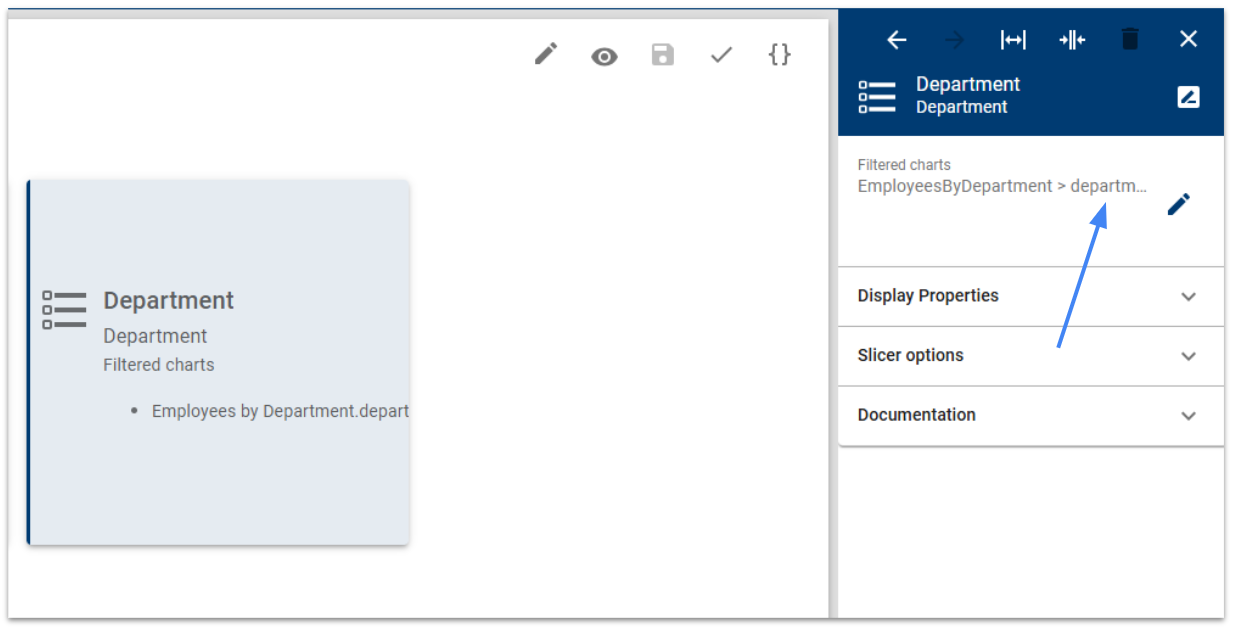
You can then customize the slicer's behavior under Slicer options:
- Sort order: determines how the available department values are ordered.
- Allow multiple selection: allows users to select more than one department.
- Display search field: provides a search box to quickly find a value.
- Allow select all: allows users to select all available departments at once.
The remaining options control how values with no associated data are displayed.
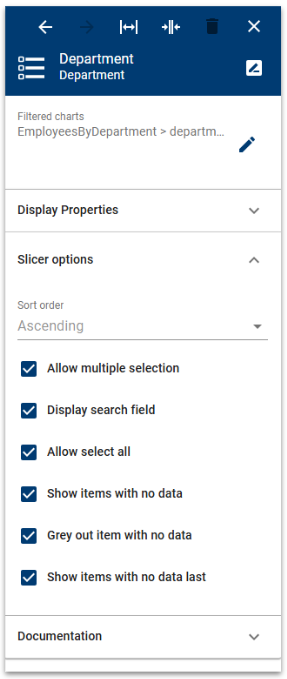
For this tutorial, keep the default settings.
You can also move and resize the slicer within the dashboard, just like a chart component.
Expected Result
The Department slicer is now part of the Overview tab and is connected to the Employees by Department chart.
When the dashboard is viewed, users will be able to select one or more departments and dynamically filter the chart.
Preview and Test the Dashboard
Once all components have been configured, click the Preview icon to see the dashboard as it will appear to end users.
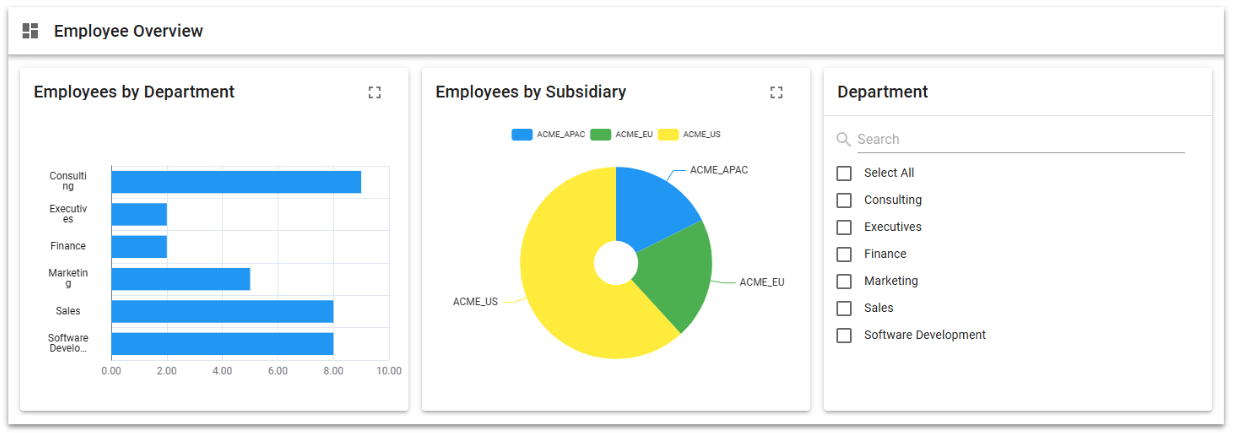
The Employee Overview dashboard now contains:
- Employees by Department — compares employee counts across departments.
- Employees by Subsidiary — shows the distribution of employees across subsidiaries.
- Department — provides an interactive filter for the Employees by Department chart.
Test the Department Slicer
In the Department slicer, select one or more departments.
Verify that the Employees by Department chart updates according to your selection.
You can also:
- use Search to find a specific department;
- select multiple departments;
- use Select All to restore all department values.
The Employees by Subsidiary chart is not affected because the Department slicer was configured only for the Employees by Department chart.
Expected Result
The dashboard displays the two Employee visualizations together and allows users to interactively filter the department chart.
Now that the Employee Overview dashboard is complete, configure the Dashboard application so that users can easily access it.
Configure the Application
From the Dashboard Builder navigation menu, select Application configuration.
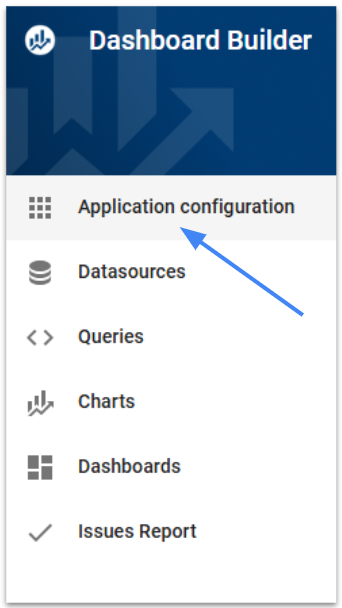
In the application settings, review the general properties of the Employee application.
Set or verify the Title displayed to users.
Make sure Visible is enabled so that the dashboard application can appear on the Semarchy Data Platform welcome page. If necessary, you can also specify a Required role to restrict access to users with a particular role.
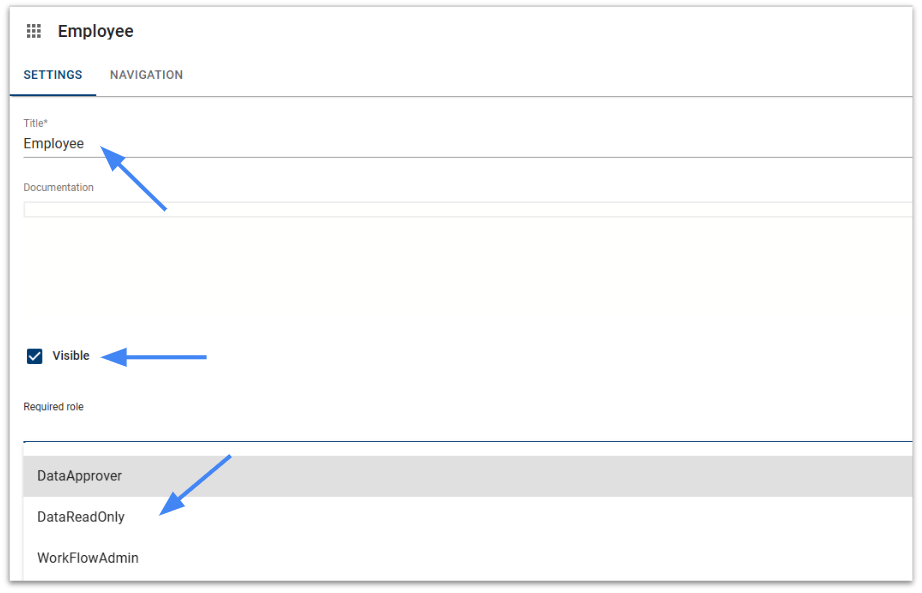
For this tutorial, keep the other application and branding properties at their default values.
Configure the Navigation
Open the Navigation tab.
The navigation defines how users access dashboards from the Dashboard application.
If no navigation has been configured yet, create your first navigation group.
- Click Add Group.
- In Label, enter
Employee Dashboards. - Click Create.
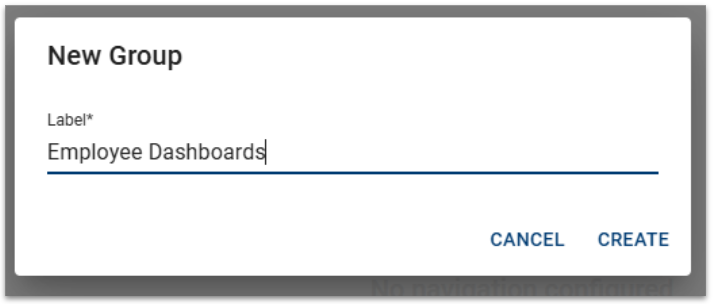
The group will be used to organize the dashboards available from the application navigation.
Add the Dashboard to the Navigation Group
The Employee Dashboards group is now created. Notice that the application indicates:
This group is empty and will not appear in the application.
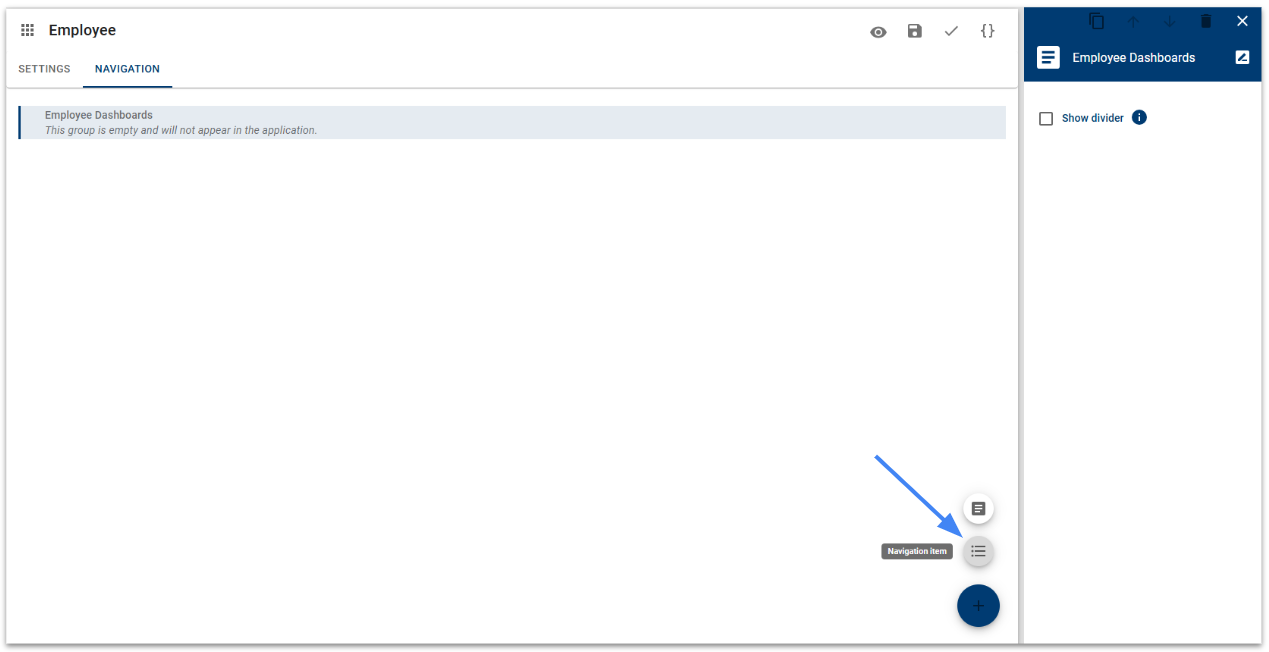
A navigation group must contain at least one item before it can be displayed to users.
- Make sure the Employee Dashboards group is selected.
- Click the + button in the lower-right corner.
- Select Navigation item.
- In the New Item dialog:
- Dashboard: select
EmployeeOverview – Employee Overview. - Label: enter
Employee Overview. - Click CREATE.
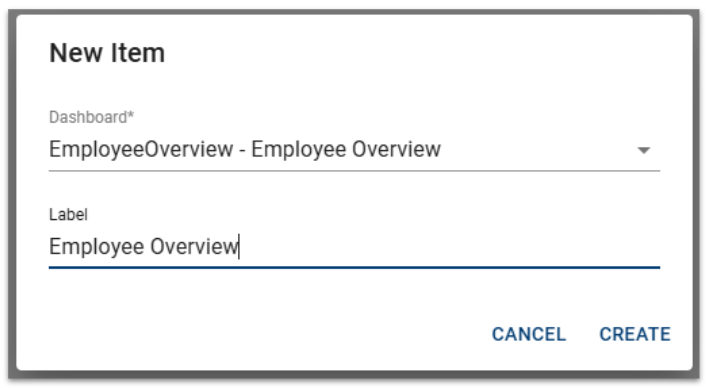
A new navigation item can then be configured to provide access to the Employee Overview dashboard.
Review the Navigation Item
After creating the item, Employee Overview appears under the Employee Dashboards navigation group.
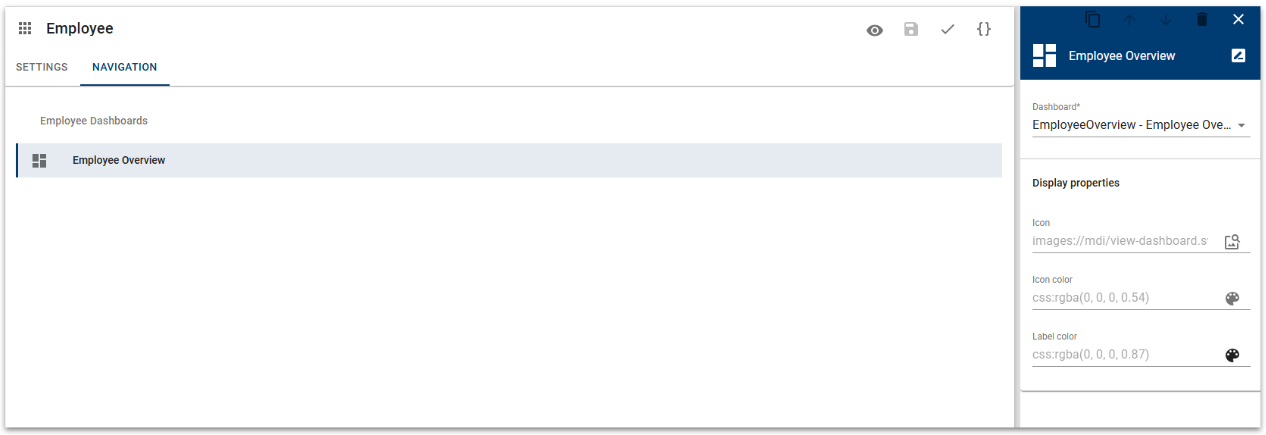
Select the navigation item to review its configuration. The right panel shows:
- the associated Dashboard;
- the Icon displayed for the navigation item;
- the Icon color;
- the Label color.
For this tutorial, keep the default display properties.
Click Save to save the application configuration.
Expected Result
The application navigation now contains:
Employee Dashboards → Employee Overview
The Employee Overview dashboard is now part of the application navigation and can be accessed by users when they open the Employee dashboard application.
Add the Dashboard Application to Favorites
You can add the Employee dashboard application to your Favorites for quick access from the Semarchy Data Platform Home page.
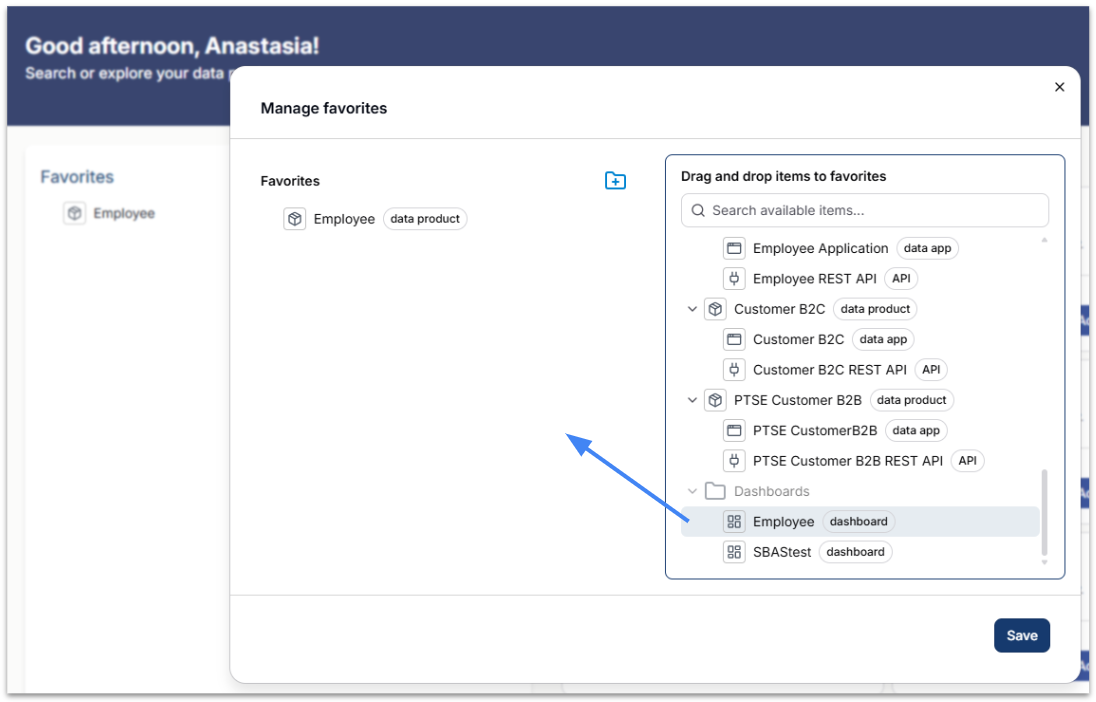
- From the Home page, open Manage favorites.
- Expand the Dashboards section in the list of available items.
- Locate the Employee dashboard.
- Drag and drop Employee into the Favorites area.
- Click Save.
The Employee dashboard is now available directly from the Favorites section of the Home page.
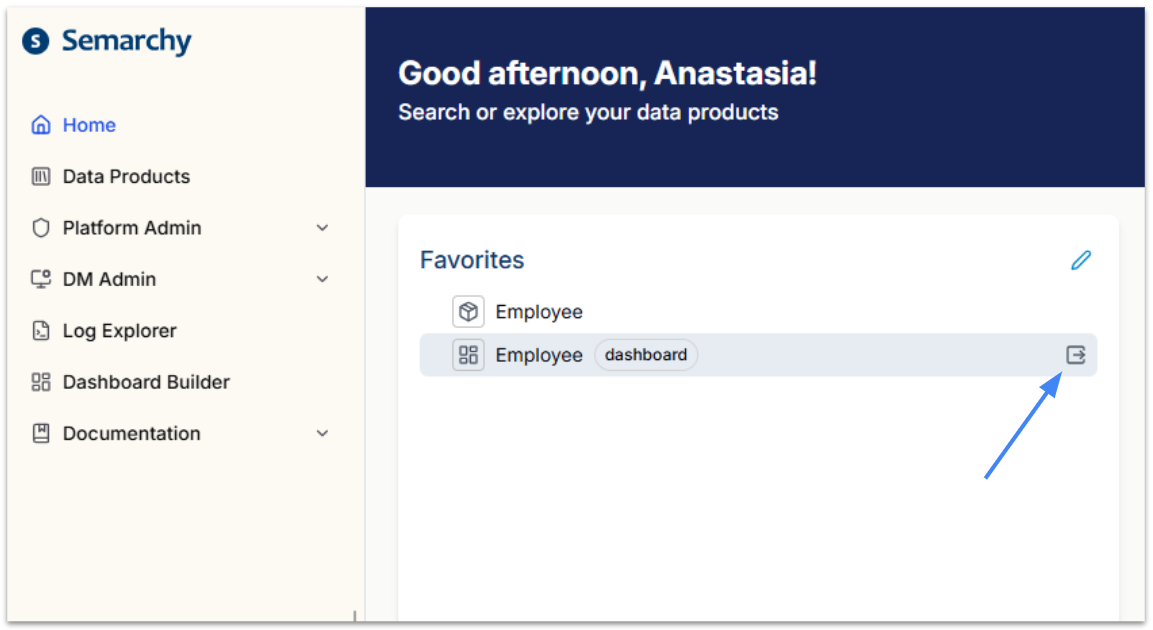
Select it to open the Dashboard application, then use its navigation to access: Employee Dashboards → Employee Overview.
Expected Result
The Employee dashboard application can now be launched directly from Favorites, providing quick access to the Employee Overview dashboard.
In this final step, we will make the dashboard accessible directly from the Employee MDM application.
Semarchy applications provide an Open dashboard application action for displaying a dashboard created with Dashboard Builder. The action identifies both the Dashboard application and the dashboard to open.
Create an Open Dashboard Action
Open the Employee project in VS Code and locate the DefaultApplication.Application.seml file.
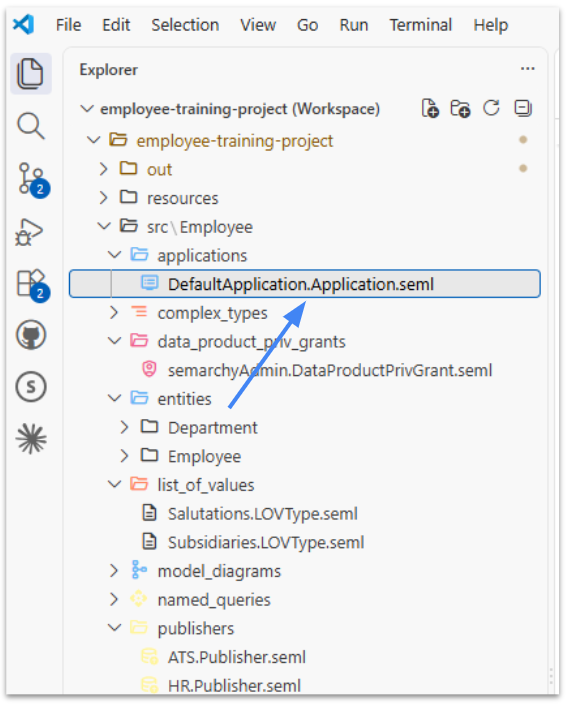
Locate the rootFolder configuration and its appActions section.
The existing application already contains actions such as Global Search, My Tasks, and Browse Entities.
At the end of the appActions list, after the BrowseEntitiesFolderAction, add:
- _type: OpenDashboardAction
  _name: EmployeeDashboard
  label: Employee Dashboard
  dashboardApplication: Employee
  dashboard: EmployeeOverview
  icon: images://mdi/view-dashboard.svg
  imageAlign: MIDDLE_CENTER
imageMode: FIT 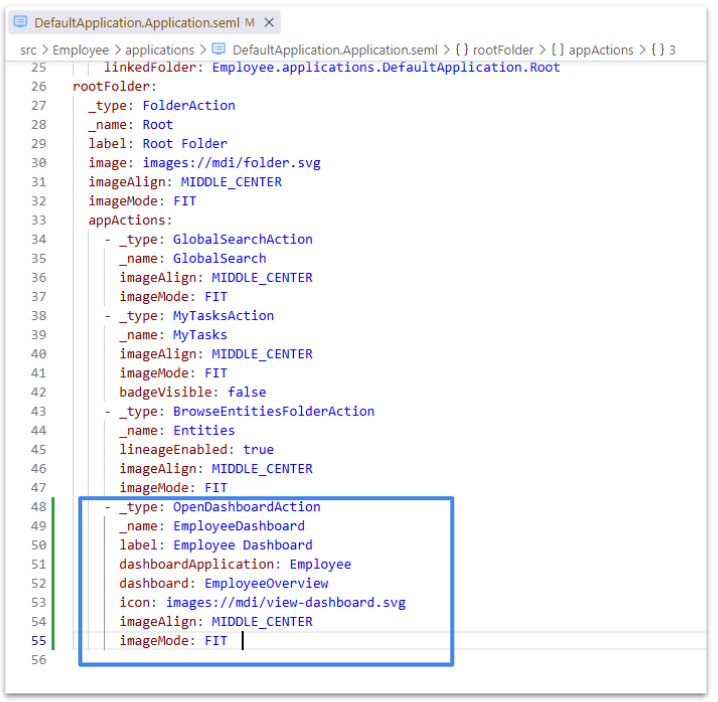
The important properties are:
_type: OpenDashboardActionidentifies the action as an action that opens a Dashboard Builder dashboard._name: EmployeeDashboardprovides the unique technical name of the action.label: Employee Dashboarddefines the label displayed to users.dashboardApplication: Employeeidentifies the Dashboard Builder application.dashboard: EmployeeOverviewidentifies the dashboard to open.
Semarchy requires both dashboardApplication and dashboard for this action. The documentation also allows optional properties such as icons, colors, roles, and dashboard parameters.
Validate, Build, and Deploy
Save the file and verify that no validation errors appear in the Problems panel.
Then Build and Deploy the Employee Data Product again so that the updated application configuration is deployed to the platform.
Open the deployed Employee Application.
The application should now contain a new Employee Dashboard action.
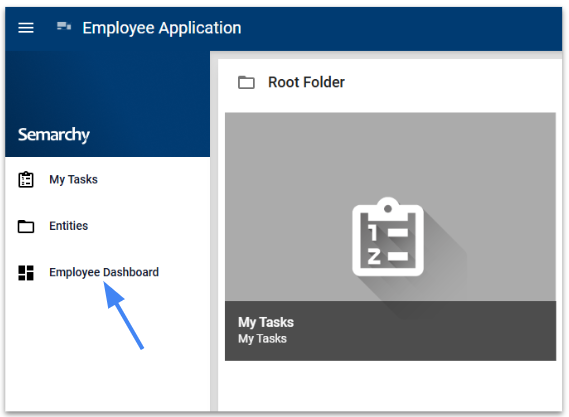
Select Employee Dashboard to open the EmployeeOverview dashboard created earlier in Dashboard Builder.
Expected Result
Users can now access the Employee Overview dashboard directly from the Employee Application, without first opening Dashboard Builder.
Conclusion
You have now connected your Dashboard Builder application with the Employee MDM application.
Users can access the Employee dashboard in two ways:
- directly from their SDP Favorites, if the Employee dashboard application has been added there;
- from the Employee Application, using the new Employee Dashboard action.
Congratulations! You have built an interactive dashboard using Semarchy Dashboard Builder and the Employee data.
What we've covered
During this tutorial, you:
- Deployed and populated the provided Employee Data Product.
- Created a Dashboard Builder application and connected it to the Employee data.
- Created queries to retrieve and aggregate Employee data.
- Built an Employees by Department bar chart.
- Built an Employees by Subsidiary pie chart.
- Combined the visualizations into an Employee Overview dashboard.
- Added a Department slicer to make the dashboard interactive.
- Previewed and tested the completed dashboard.
- Configured the Dashboard application so that users can access the Employee Overview dashboard .
You have now worked through the complete dashboard-building workflow:
Datasource → Queries → Charts → Dashboard → Slicer → Dashboard Application Configuration → Open Dashboard Action → Employee Application
The resulting Employee Overview dashboard demonstrates how data from a deployed Data Product can be transformed into interactive visualizations and made available to users through a Dashboard application.
What's next?
Now that you have completed your first dashboard, continue practicing with Dashboard Builder using the Employee data or any other data products available in your environment.
Try creating new queries and visualizations, experimenting with different chart types, adding slicers, or organizing your content across multiple dashboard tabs.
You can also connect Dashboard Builder to another deployed data product and apply the same workflow to a different dataset.
The more you experiment with queries, charts, dashboards, and interactive filters, the more comfortable you will become turning your data into meaningful visual insights.